History, saved answers & community
Every question you ask is saved automatically — nothing is lost when the chat clears. The Q&A HISTORY screen holds your complete question log, your bookmarked answers, and a read-only feed of what other aspirants are asking, in three tabs one tap from the chat.
Open your history
- Tap the Q&A tab in the bottom navigation.
- Tap the HISTORY pill (clock icon) at the top of the chat.
- The Q&A HISTORY screen opens with three tabs: MY HISTORY, SAVED and COMMUNITY.
Whichever tab you are on, the ASK A NEW QUESTION button at the bottom takes you straight back to the chat (the asking flow is covered in Ask your first question).
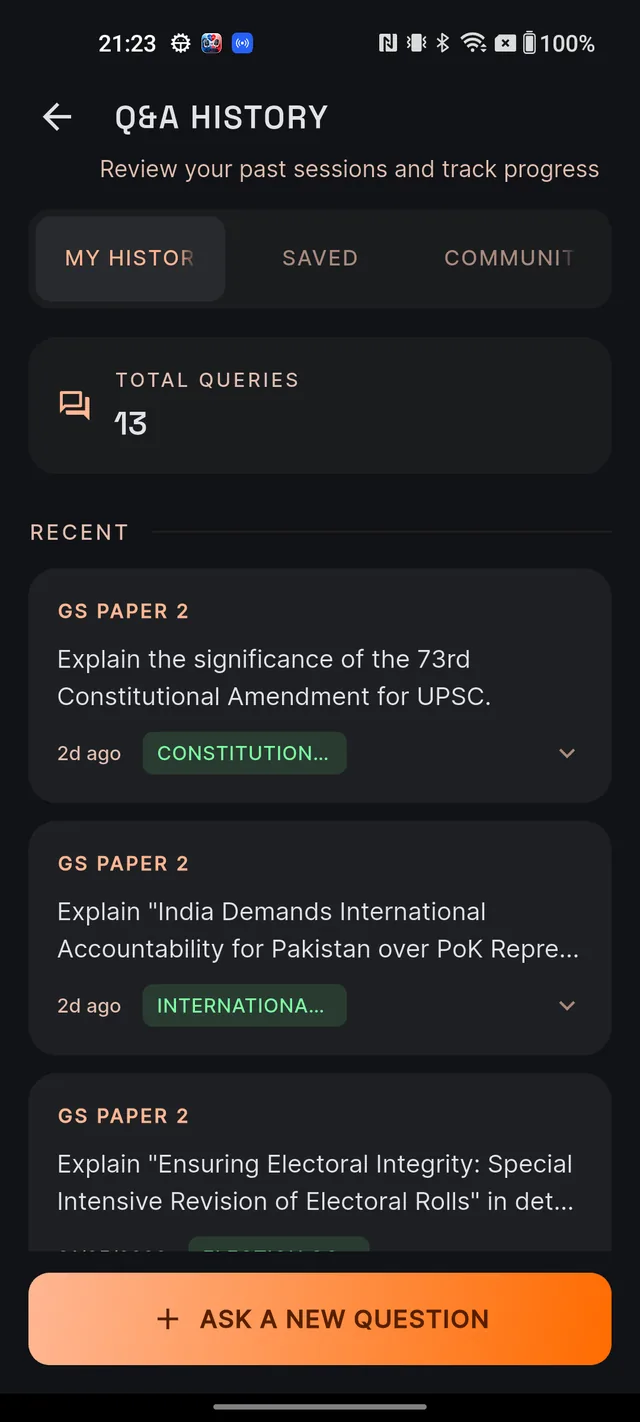
MY HISTORY — your personal question log
The tab opens with a TOTAL QUERIES count, then your questions under RECENT (the latest five) and OLDER. Scrolling loads more automatically until you see You've reached the end; pull down to refresh.
Each card shows the paper label (such as GS PAPER 2 or CSAT), the question, how long ago you asked it, and a topic tag. If you asked the same question more than once, one card carries an ASKED 2×-style badge instead of cluttering your log with duplicates.
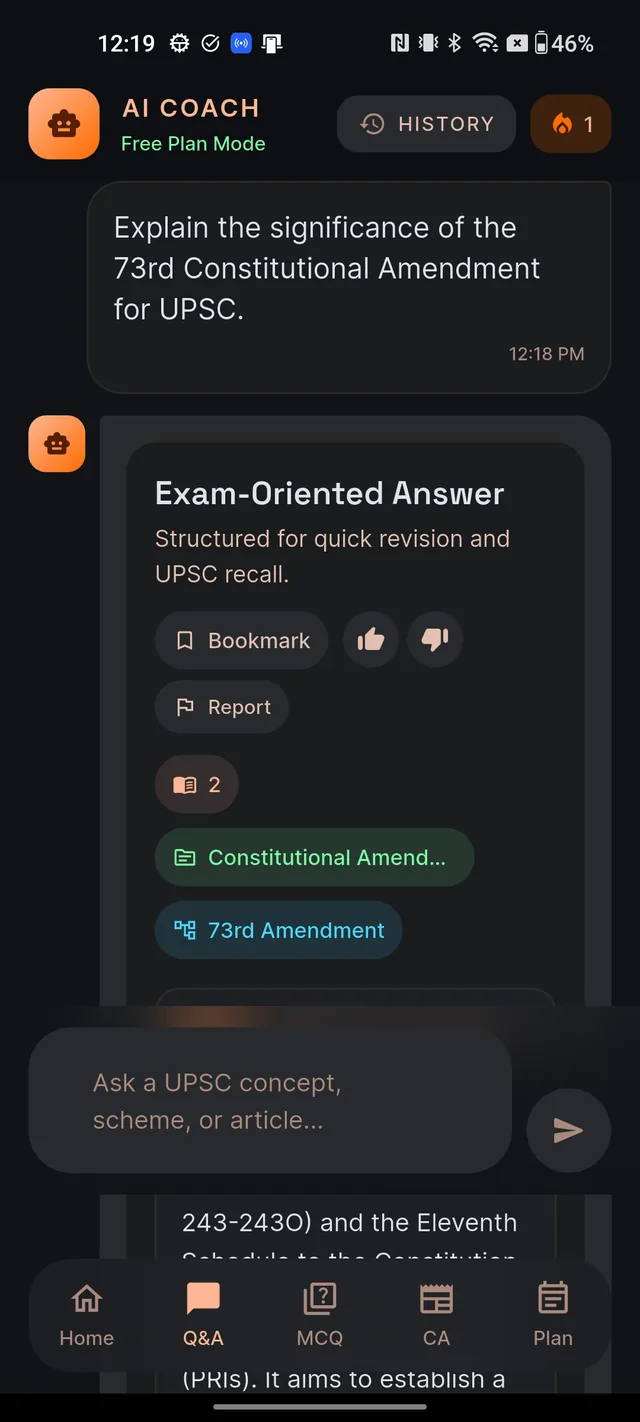
The useful part: tap any card and the full structured answer expands right there, with working Bookmark, thumbs and Report chips — so history is a revision surface, not just a list. Tap the chevron to collapse it again. A few very old entries may only have a short snippet stored.
Bookmark the answers worth revising
- On any answer card — in the chat, or expanded inside MY HISTORY — tap Bookmark.
- A confirmation appears (Answer bookmarked) and the chip turns orange and now reads Saved.
- Changed your mind? Tap the Saved chip again — you will see Bookmark removed.
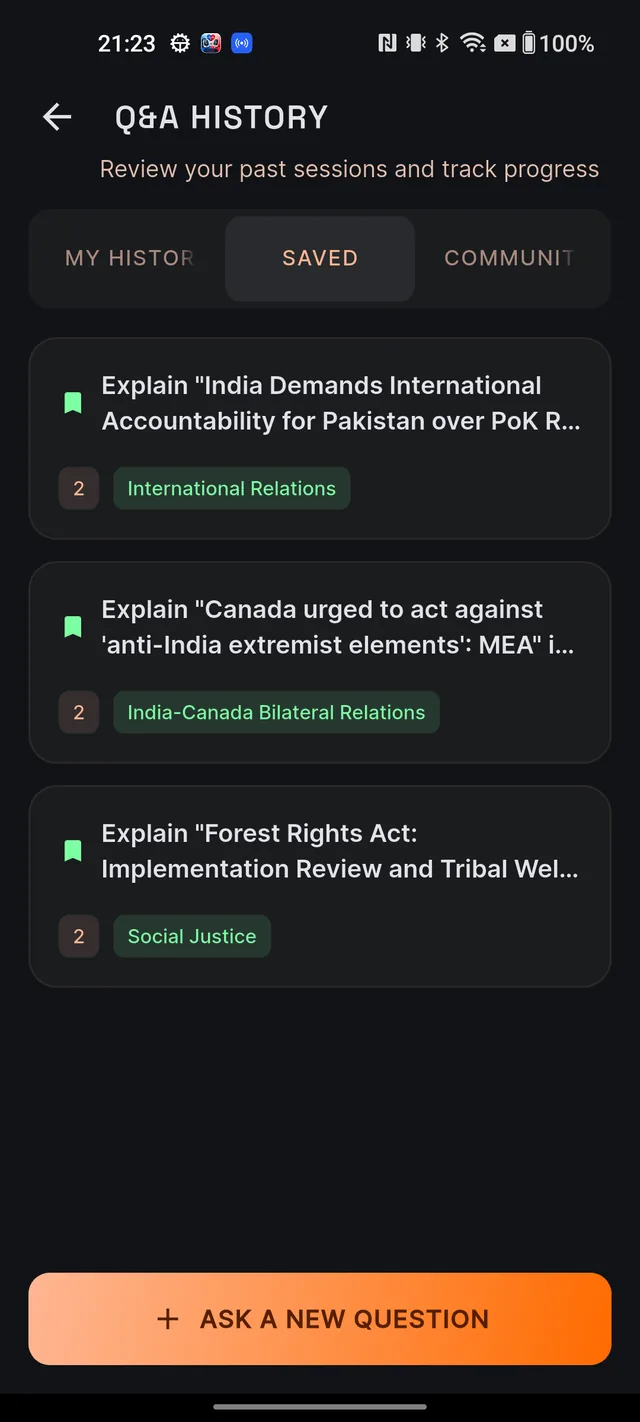
Everything you bookmark collects in the SAVED tab — your 50 most recent bookmarks, each card showing the question, a short answer snippet, and its paper and topic tags. It is the fastest pre-exam revision shelf you can build: only the answers you chose to keep.
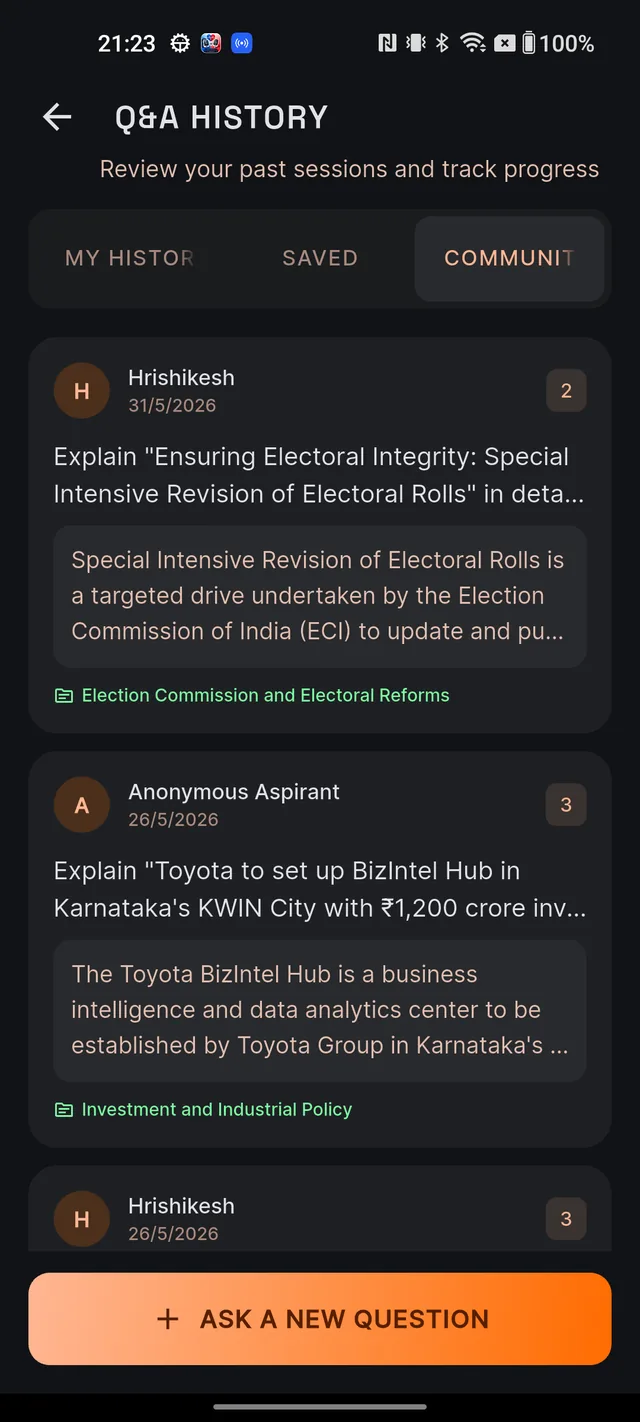
COMMUNITY — read what other aspirants are asking
The COMMUNITY tab is a read-only feed of questions that other aspirants have shared publicly. Each unique question appears once, newest first, with the asker's name (or Anonymous Aspirant), a GS chip, the question, a short answer preview and the topic. The cards are previews — they do not open into a full answer.
Use it as an idea mine. Serious aspirants ask sharp questions; when you spot one you wish you had thought of, go back to the chat and ask it yourself — because it has been answered before, your own full copy usually arrives in seconds.
Frequently asked questions
Will other aspirants see my questions?
No. Questions you ask in the app stay private to you. The COMMUNITY tab only shows questions that aspirants have explicitly chosen to share.
How do I re-read a saved answer in full?
Saved cards show a preview only. Open the MY HISTORY tab, find the same question, and tap its card — the full answer expands in place.
What does the ASKED 2× badge mean?
You asked the same question more than once. History keeps one card per question and counts the repeats instead of adding duplicate entries.
How many saved answers can I see?
The SAVED tab lists your 50 most recent bookmarks.
Why do my screenshots of answers come out black?
Answer screens are protected to keep Dooit content safe, so screenshots appear black. Use Bookmark instead — saved answers stay one tap away in the SAVED tab.
Didn’t find what you needed? We are a small team and we read every message.
Email supportBack to Help Center