Ask your first question
Asking Dooit's AI a doubt takes about ten seconds — type your question, tap send, and a full exam-ready answer is prepared for you. This guide shows you where the chat lives, what the waiting screen means, and how to phrase questions so every answer lands exactly on your topic.
Where to find Ask AI
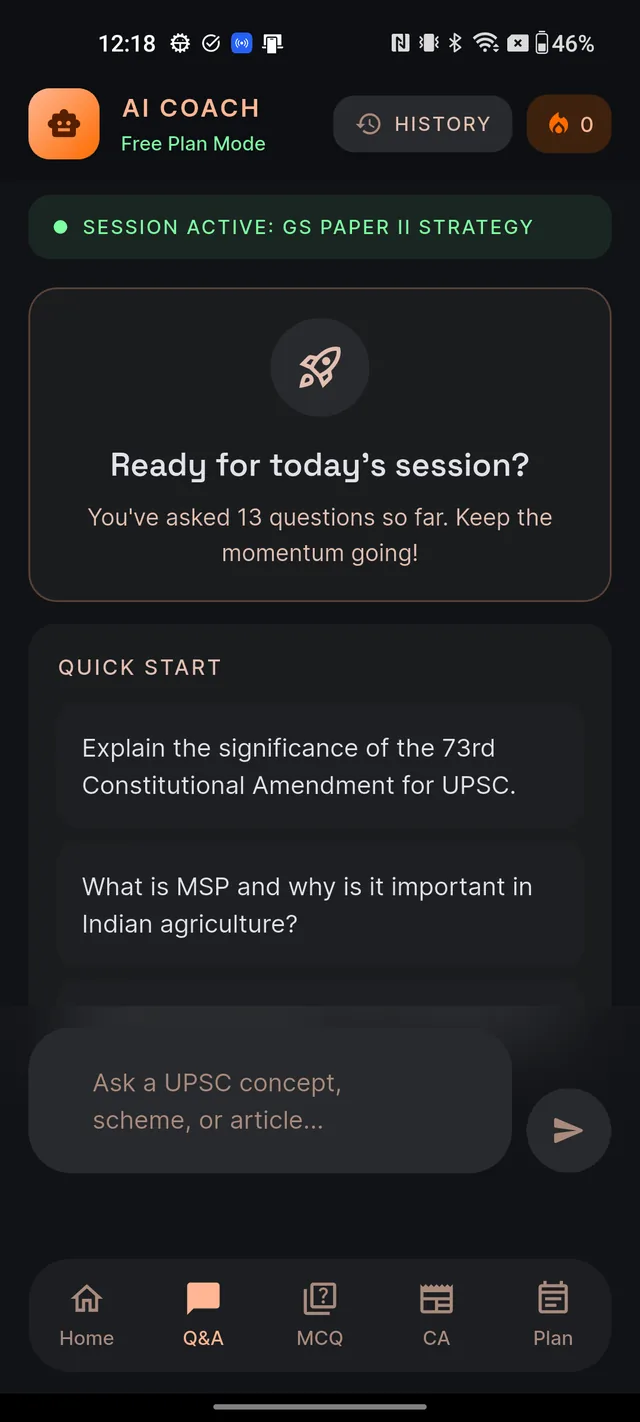
Tap Q&A in the bottom navigation bar. The chat opens under the header AI COACH; the small line beneath it simply shows which plan you are on (for example Free Plan Mode).
You can also jump into the chat from the places where doubts actually strike:
- Home screen → the Ask AI Tutor quick link.
- A Current Affairs article → ASK AI ABOUT THIS.
- A Learn note → Ask AI about this topic.
- The Plan screen → ASK AI COACH.
Ask your question, step by step
- Tap the Q&A tab.
- Tap the input field at the bottom — it reads Ask a UPSC concept, scheme, or article...
- Type your question. Name the topic clearly — for example, "Explain the significance of the 73rd Constitutional Amendment for UPSC."
- Tap the round send button (paper-plane icon). It stays grey until you have typed something, then lights up.
Not sure what to ask first? The empty chat shows tappable sample questions. Tapping one only fills the input field — you still press send, so you can edit it before it goes.
What happens while you wait
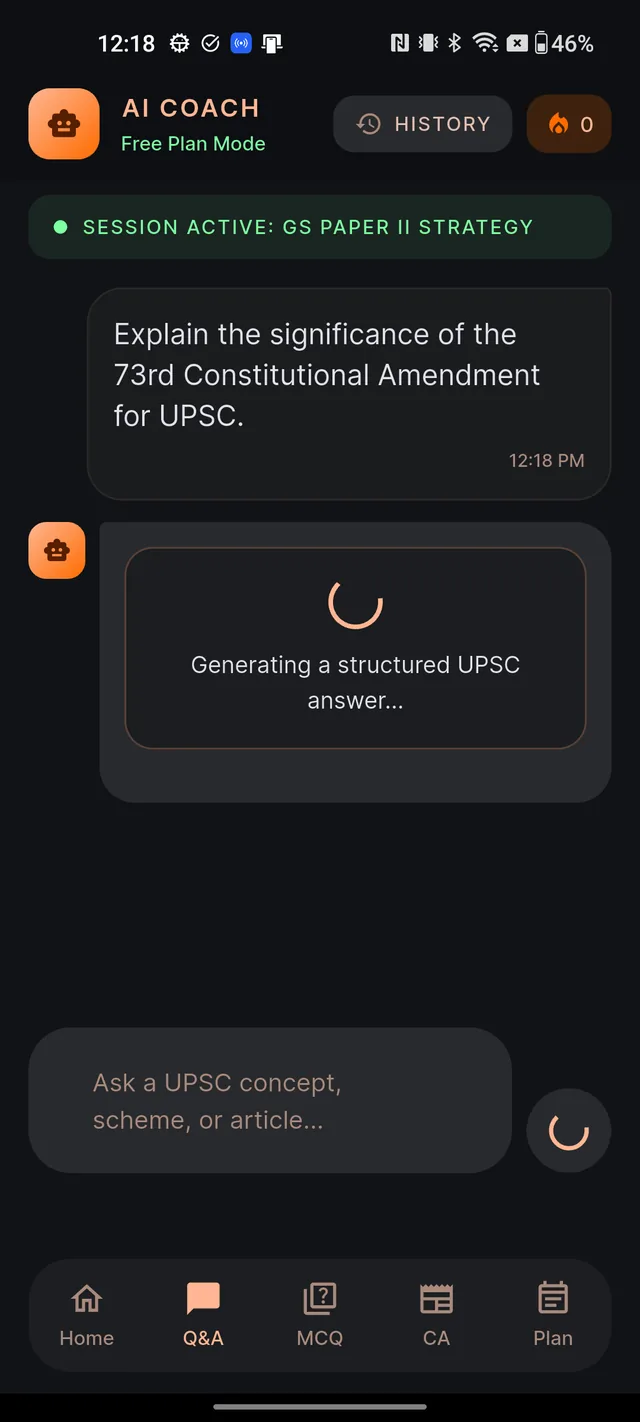
Your question appears instantly as a bubble with a timestamp. Below it, the AI's bubble shows a spinner with the message Generating a structured UPSC answer...
Two speeds are normal, and both mean everything is working:
- Almost instant — if this question has been answered before (for you or any other aspirant), the answer arrives in a couple of seconds.
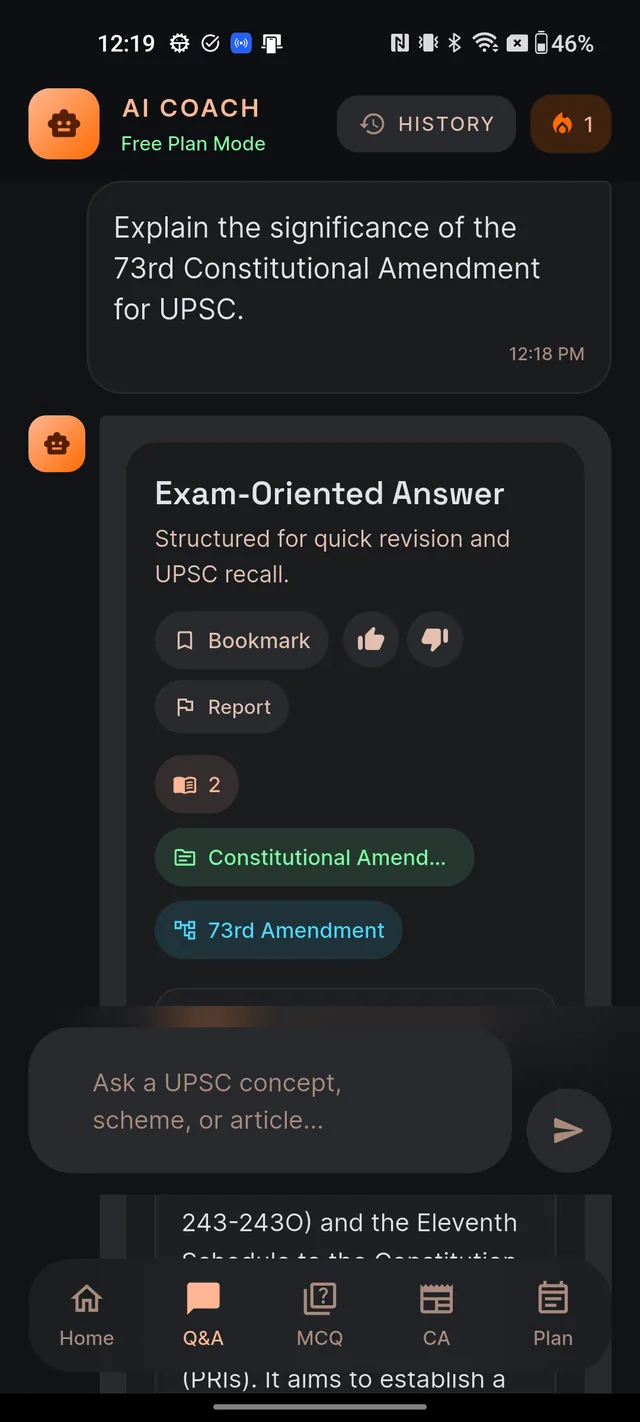
- 30 to 90 seconds — if your question is brand new, the AI writes the complete answer in full exam depth before sending it. The answer then appears all at once, and the screen scrolls so your question sits at the top with the answer flowing below.
If nothing arrives after about two minutes, you will see Answer unavailable with a Retry question button. Tap it — the retry almost always succeeds.
Your answer follows your exam medium
Answers come in the language you chose as your exam medium during onboarding — not your phone's display language. If your medium is Hindi, the entire structured answer arrives in Hindi. You can change your medium any time; see Choose English or Hindi.
Every question stands on its own
Dooit's AI answers each question fresh and complete — it does not read your earlier messages in the chat. That is a strength once you work with it: every question you ask gets the full structured treatment, never a half-reply that leans on context.
The habit to build: carry the topic inside every question. Instead of typing "explain more", ask "Explain Gram Sabha powers under the 73rd Amendment in more detail."
The app also does the carrying for you. After every answer, the EXPLORE FURTHER box offers up to three ready follow-up questions built on the same topic — tapping one sends it immediately. Below that, a Practice MCQs on this topic button (it names your topic when one is detected) jumps you straight into a quiz on what you just learned.
Once your answer arrives, learn what each numbered block is for in Understanding your AI answer, and find every past answer again via History, saved answers & community.
Frequently asked questions
How long does an answer take?
Questions that have been answered before arrive in a couple of seconds. Brand-new questions take 30 to 90 seconds because the AI writes the full answer in exam depth. If nothing arrives after about two minutes, tap Retry question.
Does the AI remember my previous question?
No. Each question is answered on its own. Include the topic in every question you type, or tap a suggestion in the EXPLORE FURTHER box — those chips carry the topic for you.
Can I get answers in Hindi?
Yes. Answers follow the exam medium you picked during onboarding or in Settings, not your phone language. Hindi-medium aspirants get the full structured answer in Hindi.
Why do I see a screen saying I have used today's free AI quota?
Brand-new AI answers are limited on the Free plan. The rest of the app stays open for study, and fresh AI returns at midnight (IST). Questions that have already been answered before still arrive instantly.
Where do my questions go after I ask them?
Every question is saved automatically. Tap the HISTORY pill at the top of the chat to revisit any past answer.
Didn’t find what you needed? We are a small team and we read every message.
Email supportBack to Help Center