The Digest & older days
The Weekly / Monthly Revision digest collects every current-affairs brief from the last 7 or 30 days and groups it by GS paper and topic — so your revision is structured, not scattered. It is also how you reach older days' briefs on the mobile app.
Open the digest
- Tap CA in the bottom navigation bar.
- Near the top of the feed, tap the card titled Weekly / Monthly Revision ("Group last 7 or 30 days of CA by GS paper").
- The CA REVISION DIGEST opens. The back arrow returns you to the feed.
Pick a window and read the summary
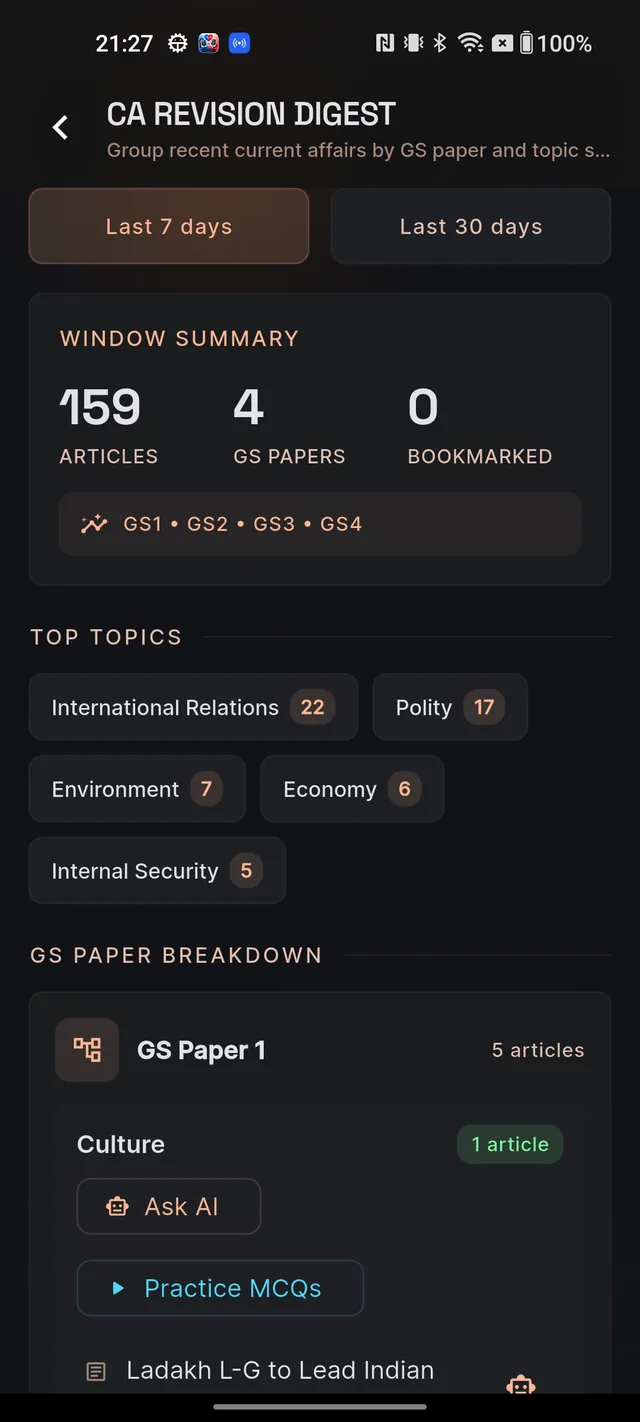
At the top, two chips switch the range: Last 7 days and Last 30 days. The window always includes today — weekly means today plus the six days before it.
The WINDOW SUMMARY card gives you the bird's-eye view of the range:
- ARTICLES — how many briefs were published in the window.
- GS PAPERS — how many GS papers they touch, with a coverage strip like "GS1 • GS2 • GS3".
- BOOKMARKED — how many of those articles you have saved.
Below it, TOP TOPICS shows chips with each topic's name and article count — a quick read on where the news has been concentrating, and where examiners are most likely to look.
The GS paper breakdown
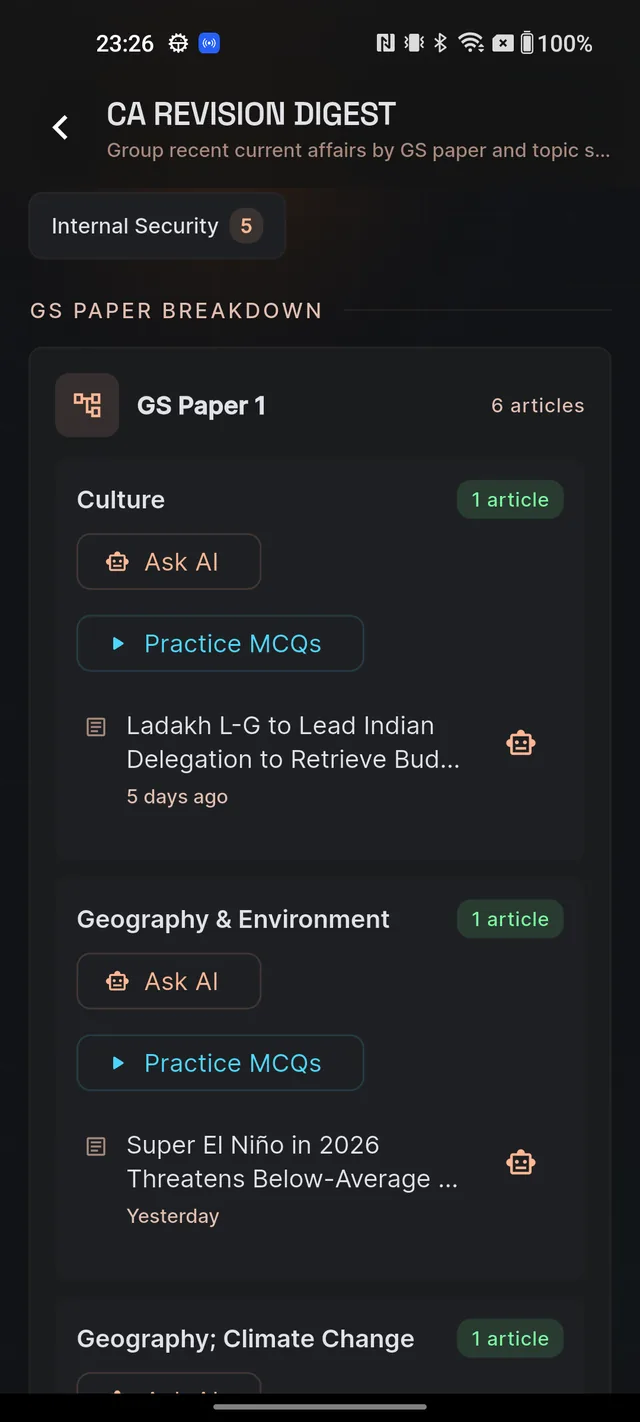
The heart of the digest is GS PAPER BREAKDOWN: one card per paper — GS Paper 1, GS Paper 2 and so on, plus Other current affairs for briefs not yet tied to a paper — each with its article count.
Inside each card, articles are grouped by topic. Tap any article row to open the full brief, exactly as you would from the feed. Each row also has a small robot icon if you want to ask our AI about that one article.
Revise a whole topic with one tap
Every topic group carries two buttons:
- Ask AI — opens Q&A with a ready-made revision prompt covering that topic's recent news.
- Practice MCQs — starts a quiz on that topic, so you test the week's news instead of just re-reading it.
Both are AI actions, so they use your daily AI allowance when fresh material has to be generated for you (reading the digest itself is free). If you've used up today's AI actions, you'll see a friendly note inviting you back tomorrow — see Free vs paid for what each plan includes.
Reading older days
There is no date-by-date calendar on the mobile app — the digest is your archive. Last 30 days includes every published brief in that range, grouped so you can sweep a whole month before a sectional test. You can pull down to refresh the digest at any time.
If you picked a window with nothing in it, you'll see No current affairs in this window — switch to a longer range or check back after the next brief is published. And remember the feed itself never goes blank either: when today's briefs haven't landed yet, it shows the latest available day — see The daily Current Affairs feed.
Frequently asked questions
How far back can I read current affairs?
Switch the digest to 'Last 30 days' to see every brief published in the past 30 days, grouped by GS paper and topic. There is no date-by-date calendar on the mobile app — the digest is your archive.
Do Ask AI and Practice MCQs in the digest cost anything?
They use your daily AI allowance when a fresh answer or fresh questions have to be generated, and how much allowance you get depends on your plan. Reading the digest and opening articles is free. If you've used today's AI actions, you'll see a friendly note inviting you back tomorrow.
Why does the digest say 'No current affairs in this window'?
Nothing has been published in the range you picked, which is rare. Switch to 'Last 30 days', or check back after the next brief is published.
What does the BOOKMARKED number count?
How many of the articles in the selected window you have saved with the bookmark icon.
Does the digest include articles I've already opened?
Yes. It lists every brief published in the window, whether or not you've read it — handy for a full sweep before a test.
Didn’t find what you needed? We are a small team and we read every message.
Email supportBack to Help Center