Save articles for revision
Tap the bookmark icon once and a current-affairs article is saved for later — kept under the feed's Saved pill and surfaced again on the Revise Today screen. Here is how saving works, where your saved articles live, and what the 50-article limit means.
Save an article
- Tap CA in the bottom navigation bar.
- Tap the bookmark icon on any article card — or open an article and tap the bookmark icon at the top of the page.
- The icon fills in to confirm the save. Tap it again at any time to un-save.
Saving happens instantly, and the icon's state stays in sync between the feed and the open article. If a save doesn't go through (say, you're offline), you'll see "Could not update bookmark. Try again."
Find your saved articles
- On the CA feed, scroll the category pills to the end and tap the bookmark-icon Saved pill.
- The feed switches to your saved list, headed SAVED ARTICLES with the count in brackets. Tap any card to read it.
- To go back to the normal feed, tap any category pill, such as All.
If you haven't saved anything yet, you'll see No saved articles with the hint "Tap the bookmark icon on any article to save it for later."

The 50-article limit
The habit that works: save an article the moment it feels mains-worthy, revise it within the week, then un-save it. That keeps the list short, current and meaningful. For sweeping a whole week or month of news, use the digest instead — see The Digest & older days.
Saves are stored in your Dooit account, not on your phone — they survive a reinstall or a new device, and they're also there when you use Dooit on the web at app.dooitupsc.com.
Saved articles appear in Revise Today
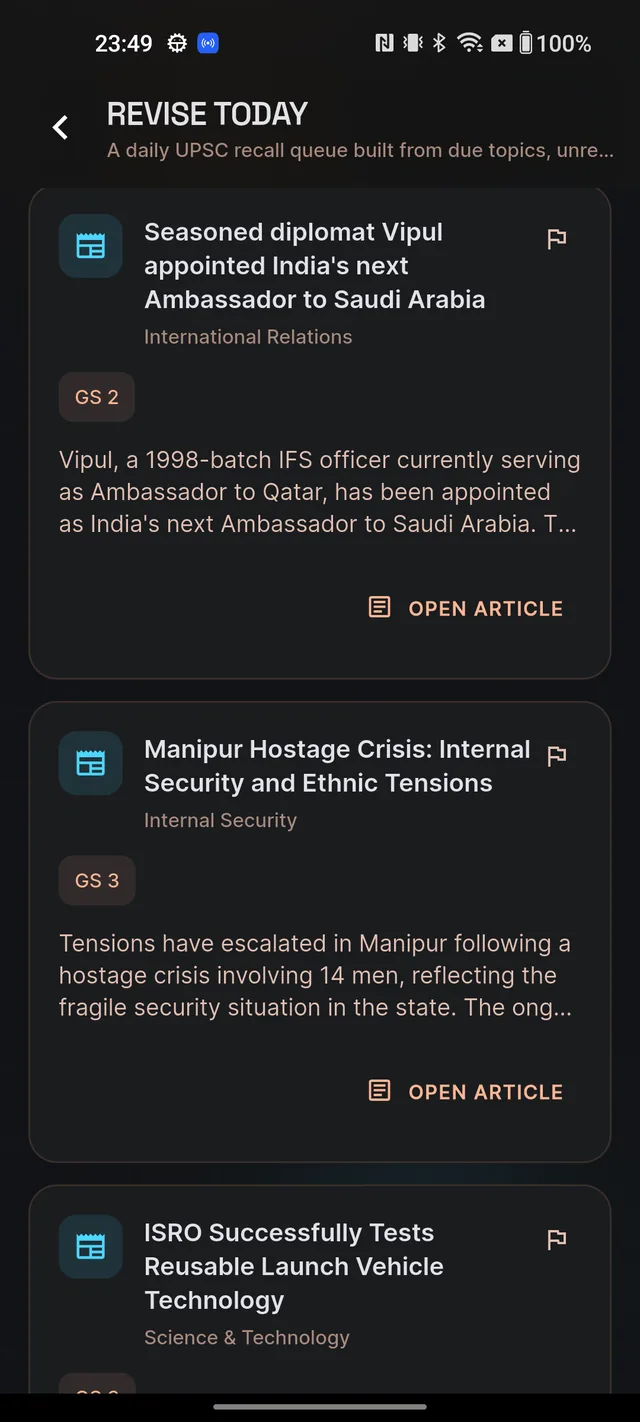
Bookmarking does more than build a list — your saves follow you into revision. The Revise Today screen (open it from the Revise Today card on the home screen) shows your 5 most recent saved articles under SAVED CURRENT AFFAIRS, each with an OPEN ARTICLE button that jumps straight back into the brief.
These cards stay on the revision screen visit after visit until you un-save the article — another reason to un-bookmark things once you've genuinely revised them. See Revise Today & review sessions for how the rest of that screen works.
Does Dooit track which articles you've read?
No — on the mobile app there is no read/unread marker on current-affairs articles. The feed doesn't tick off or grey out briefs you've already opened. If you want to remember what to come back to, the bookmark is your tool: save what matters, un-save it once revised. That manual rhythm is deliberate — deciding what deserves a second read is itself good revision judgement.
Frequently asked questions
How many articles can I save?
Your Saved list shows your 50 most recent bookmarks. When you save more, the oldest drop off the list — so un-save articles you've finished revising to keep the list useful.
Do my saved articles survive a reinstall or a new phone?
Yes. Saves are stored in your Dooit account, not on the device, so they come back as soon as you sign in again.
How do I remove a saved article?
Tap the filled bookmark icon again, on the article card or at the top of the open article. It empties out and the article leaves your Saved list.
Where do saved articles show up in revision?
The Revise Today screen lists your 5 most recent saved articles under SAVED CURRENT AFFAIRS, each with an OPEN ARTICLE button. They stay there until you un-save them.
Does Dooit mark articles as read?
No. On the mobile app there is no read/unread marker for current-affairs articles. Use the bookmark instead — save what you want to come back to, and un-save it once revised.
Didn’t find what you needed? We are a small team and we read every message.
Email supportBack to Help Center