Your AI evaluation, explained
Every answer you submit is graded the way an examiner would grade it: six scoring areas totalling 15 marks, a written verdict, what worked, and what to fix next time. This guide explains what each area measures and how to turn the feedback into marks.
From submit to report
When grading finishes (usually 30–60 seconds after you tap Submit for AI evaluation — see Write your answer), the Attempt details report opens automatically. To revisit any report later:
- Open the app and tap Mains Workspace on Home.
- Tap the My Answer Bank card.
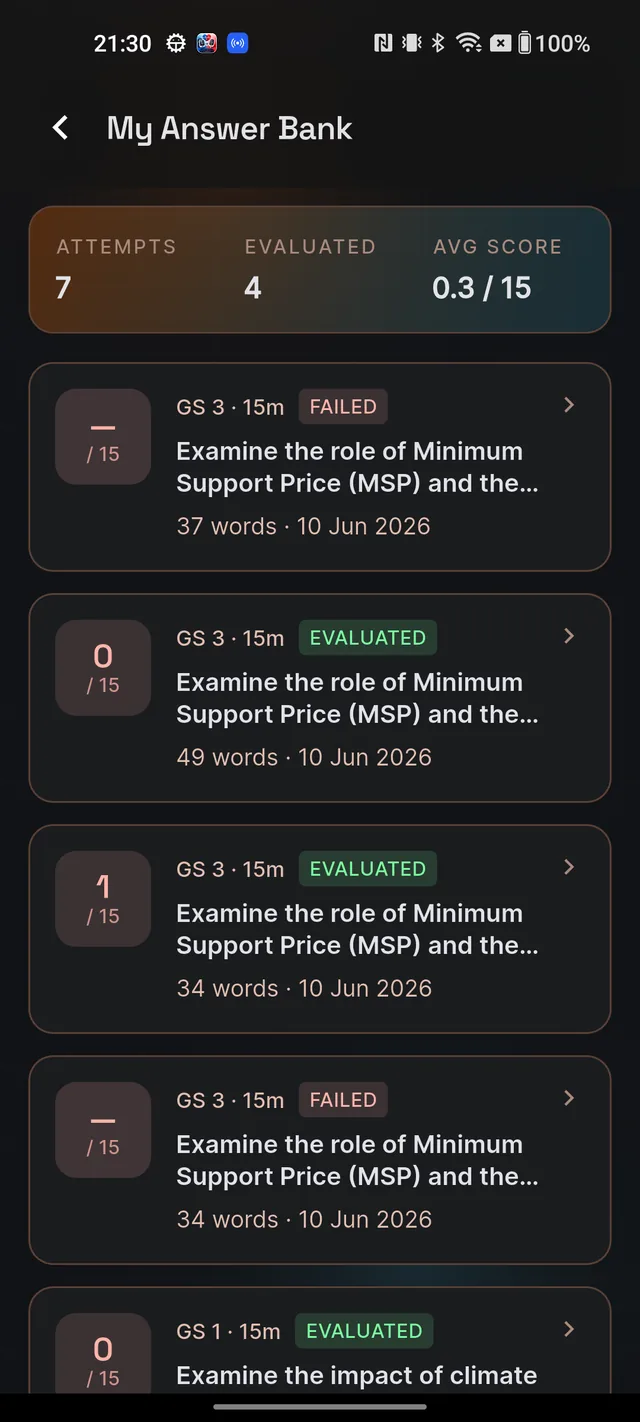
- Tap any attempt. The summary strip at the top shows your totals: Attempts, Evaluated and Avg score (out of 15, across evaluated attempts only).
Each attempt card carries a status chip: EVALUATING (still grading — pull down to refresh after a minute), EVALUATED (report ready) or FAILED (grading hit a problem — your answer is safe, see below). Note that the report screen blocks screenshots — that is content protection, not a glitch.
The score: six areas, 15 marks
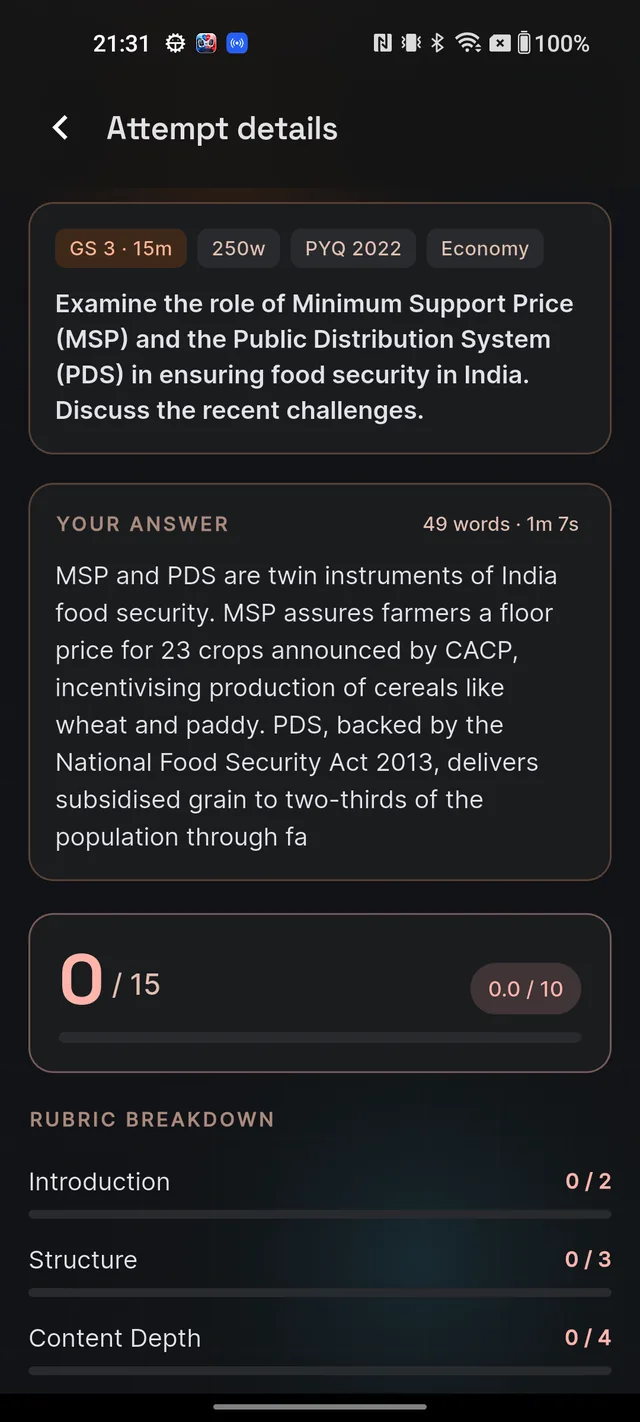
The big number on your report is your total out of 15, with a pill converting it to a UPSC-style score out of 10. As a rule of thumb on the 15-point scale: 12 and above is strong (green), 9–11 is mid-range, and 8 or below signals real room to improve (red). Below it, the Rubric breakdown shows the six areas, each with its own bar:
| Area | Maximum marks |
|---|---|
| Introduction | 2 |
| Structure | 3 |
| Content Depth | 4 |
| Dimensions | 3 |
| Conclusion | 2 |
| Word Count | 1 |
What each area rewards
- Introduction (2 marks) — an opening that is specific to this question, stays brief (around 30 words), and is anchored in something concrete: a constitutional Article, a quote, a fact or a case.
- Structure (3 marks) — clear headings and a logical paragraph flow, such as cause to effect or problem to solution. The examiner should never have to hunt for your argument.
- Content Depth (4 marks) — the heaviest area. Name your sources: Articles, committees, Supreme Court cases, government schemes, NCERT concepts, dated data. Aim for at least three named anchors.
- Dimensions (3 marks) — covering three to four angles (political, social, economic, ethical, legal) and linking them, rather than writing one long single-angle essay.
- Conclusion (2 marks) — synthesise, don't summarise. Take a position and point to a way forward.
- Word Count (1 mark) — stay within roughly ±10% of the question's word limit. Padding and under-writing both cost this mark.
Reading the written feedback
Below the breakdown, three sections turn the numbers into action:
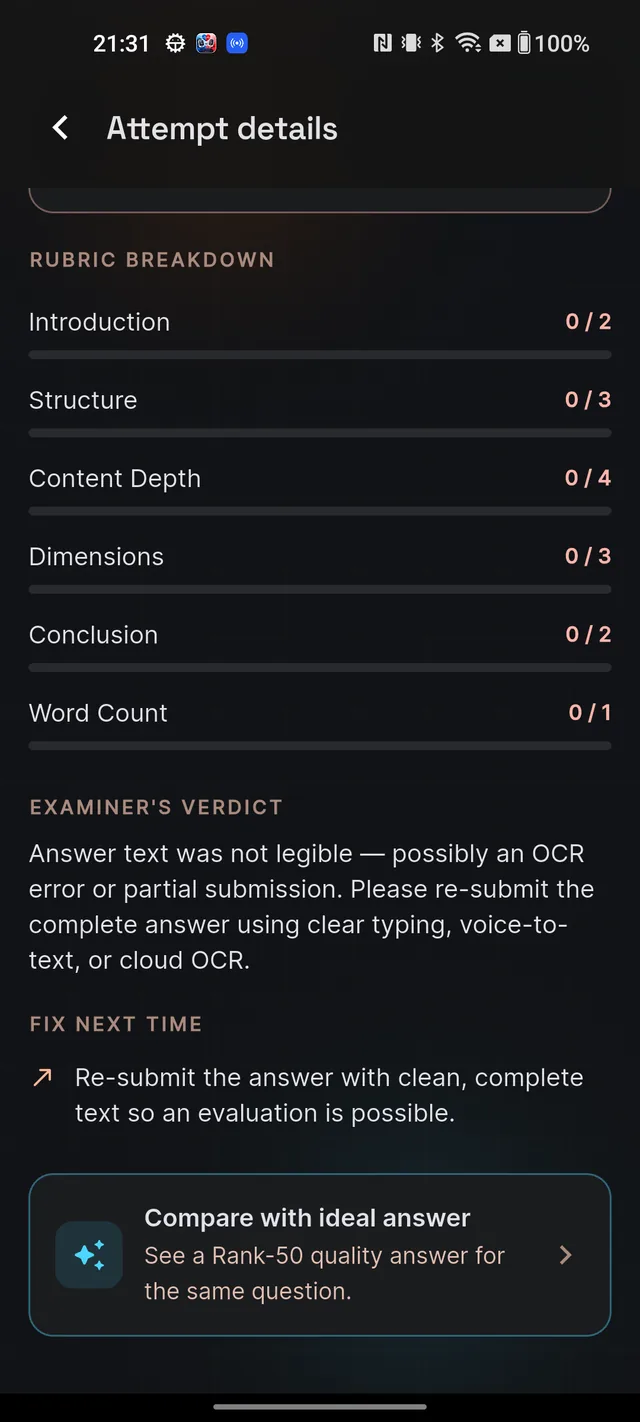
- Examiner's verdict — a feedback paragraph written in your exam language (English or Hindi).
- What worked — your strengths, as bullet points. Keep doing these.
- Fix next time — concrete improvements, one per bullet. Pick one or two and apply them in your very next answer rather than trying to fix everything at once.
At the bottom sits the Compare with ideal answer card — a top-quality answer to the same question. See Model answers for how to use it well. Over multiple attempts, your repeating weak areas surface in The Weak Axes report.
Failed gradings and resubmits
If a report shows "Evaluation in progress", the examiner is still grading — pull down to refresh in a few seconds. If it shows "Evaluation failed", nothing is lost: your answer was saved at submit time. Tap Retry evaluation and the same text is graded again.
Frequently asked questions
How is my Mains answer scored?
Six areas totalling 15 marks: Introduction 2, Structure 3, Content Depth 4, Dimensions 3, Conclusion 2 and Word Count 1. The report also converts your total to a UPSC-style score out of 10.
Will my feedback be in Hindi?
Yes — the examiner's verdict and feedback are written in your exam language, English or Hindi.
My evaluation failed — is my answer lost?
No. Your answer is saved the moment you submit. Open the attempt and tap Retry evaluation — it re-grades the same text.
If I resubmit the exact same answer, am I charged again?
No. Submitting the identical answer text on the same question returns your previous report instantly, without using another evaluation. Changing even one word makes it a fresh evaluation that uses your daily allowance.
Why can't I take a screenshot of my report?
The report screen blocks screenshots as part of content protection. Your full report stays available any time in My Answer Bank.
Didn’t find what you needed? We are a small team and we read every message.
Email supportBack to Help Center