Write your answer: typing, voice & photo
The answer editor gives you three ways to get your answer in: type it, dictate it with your voice, or photograph a handwritten page and let Dooit convert it to text. One thing to know before you start: answers do not auto-save — submit (or copy) your text before you leave the screen.
The editor at a glance
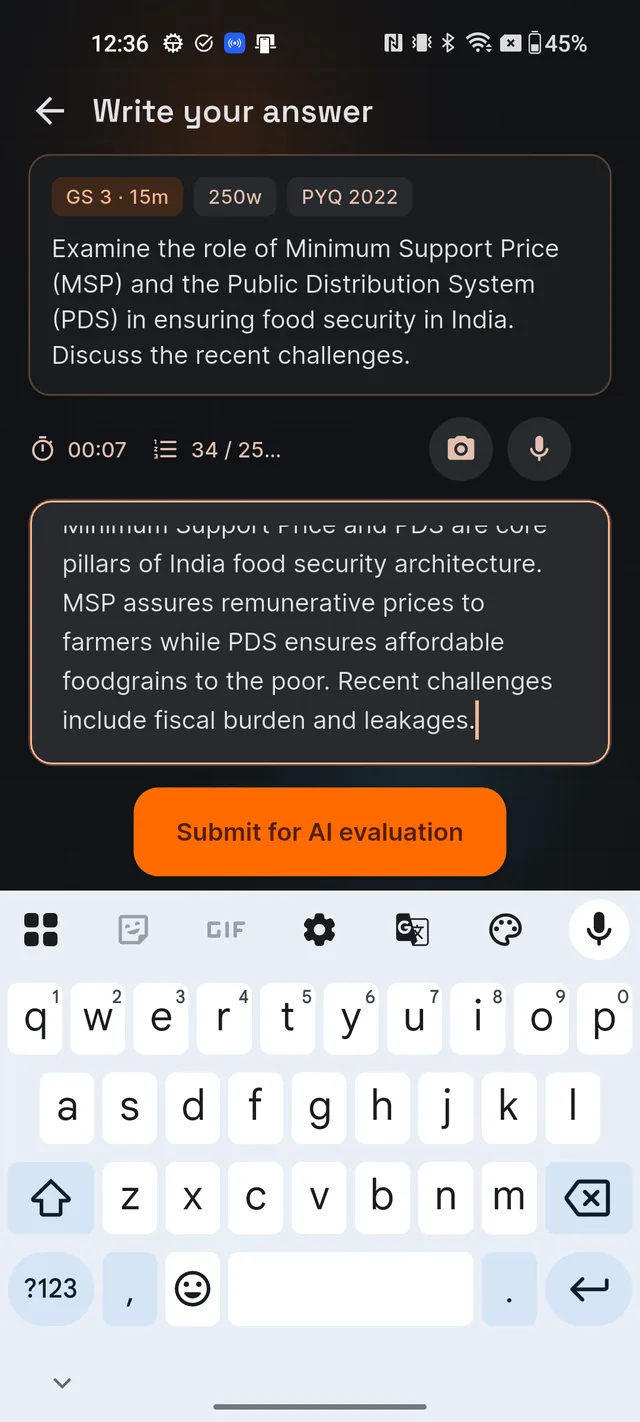
Tap any question card in the Mains Workspace, or the TODAY'S MAINS card on Home, and the Write your answer screen opens. From top to bottom you see:
- The question card — paper and marks ("GS 2 · 15m"), word limit ("250w"), a PYQ year pill when applicable, and the full question.
- The stat strip — a timer that starts on your first keystroke (reading time is not counted), a word counter showing "your words / target words", and the camera and mic buttons on the right.
- The answer box — with the hint Start typing your answer here. Aim for the rubric: intro, structure, depth, dimensions, conclusion.
- The submit button — Submit for AI evaluation. It stays greyed out until your answer is between 50 and 8,000 characters; a hint below tells you which side you are on.
The word counter changes colour as you write: muted while you are below 80% of the word limit, green between 80% and 110% (the sweet spot), and orange once you go past 110%.
Submit and get graded
- Finish your answer and check the word counter is green.
- Tap Submit for AI evaluation.
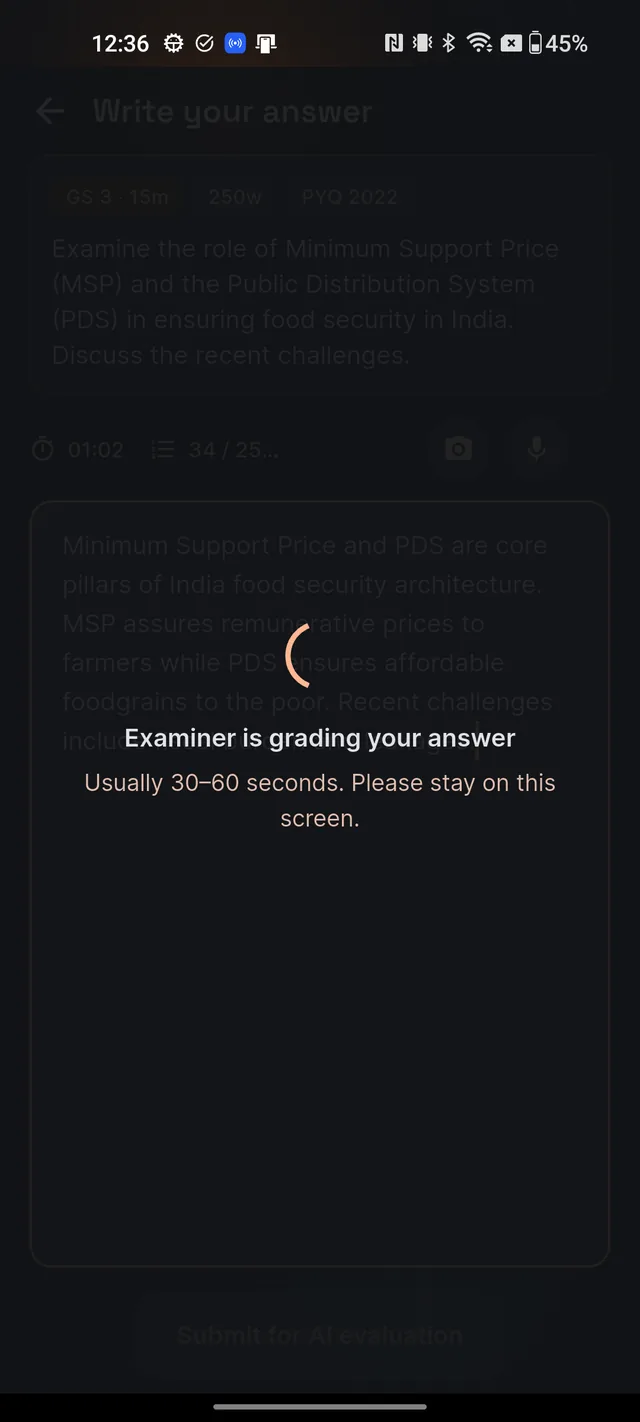
- A full-screen overlay appears: Examiner is grading your answer — usually 30–60 seconds. Stay on this screen.
- Your evaluation report opens automatically. See Your AI evaluation, explained for how to read it.
If grading takes unusually long, don't worry — your attempt is already saved. Open My Answer Bank from the Mains Workspace and pull down to refresh; the result appears there. Submitting uses one evaluation from your daily AI allowance (shared with Q&A and quizzes). If your day's allowance is already used up, instead of grading you will see the friendly You've used today's free AI quota screen with a Keep learning button — fresh allowance arrives at midnight IST. Paid plans guarantee your daily evaluations; see Free vs paid.
Dictate with your voice
Tap the mic button in the stat strip. The first tap asks for microphone permission. While listening, a banner shows Listening · English (or Listening · Hindi — it follows your exam language) with a live transcript and a Stop pill. Tap Stop or the mic icon to finish, and the recognised text is inserted exactly where your cursor was when you started.
Dictation uses your phone's own speech engine, so it is free and never touches your daily AI allowance. If a banner says the mic is unavailable, check microphone permission under Settings → Apps → Dooit on your phone; some devices also need an internet connection for speech recognition.
Photograph your handwritten page
If you practise on paper, you don't have to retype anything:
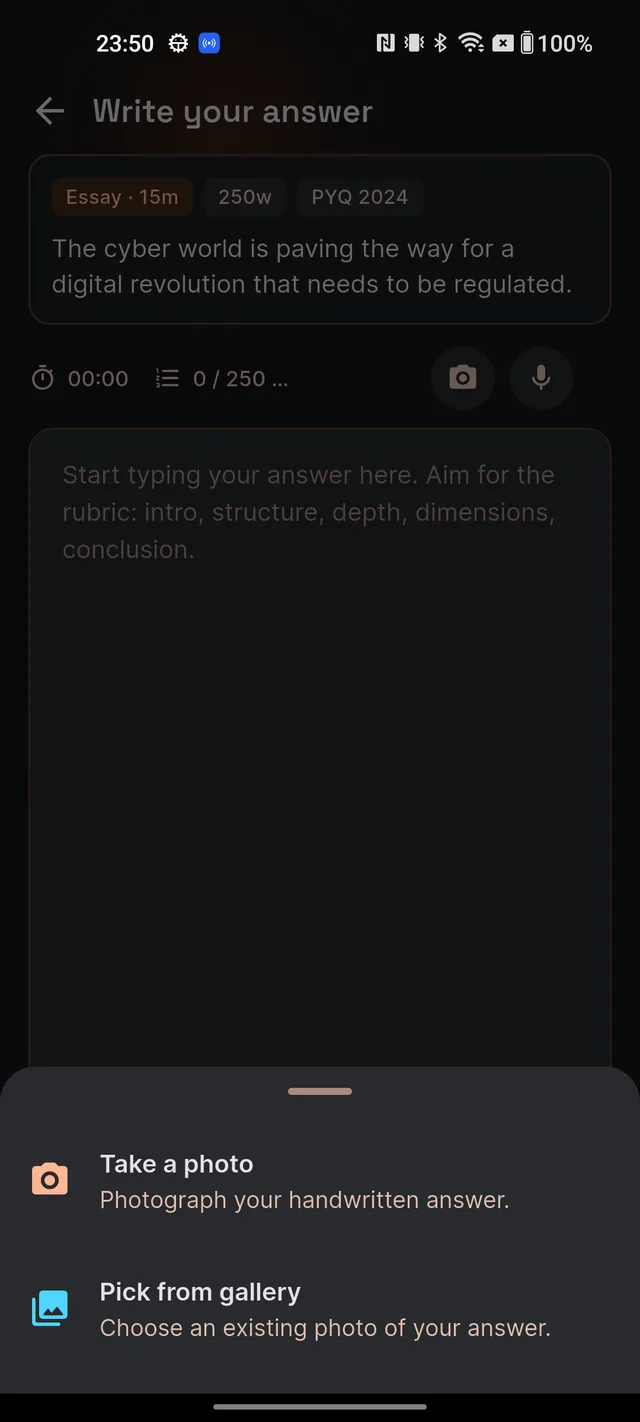
- Tap the camera button in the stat strip.
- Choose Take a photo or Pick from gallery.
- A spinner replaces the camera icon while Dooit's AI reads your handwriting — typically a few seconds. It reads Hindi (Devanagari) handwriting too.
- If every word was read, the text is inserted at your cursor and a message confirms: "Transcription added to your answer."
- If some words could not be read, a review sheet opens before anything enters your answer: Some words couldn't be read clearly. Each doubtful word is marked [unclear] — replace them by looking at your page. The button reads Insert anyway while any markers remain, and becomes Insert once you have fixed them all.
- After inserting, you can still edit everything in the editor before submitting.
The AI deliberately never guesses an unreadable word — a hallucinated word would hurt your evaluation more than a marker you fix yourself. If a photo fails entirely, re-shoot in better lighting with the page flat in the frame. Photo reads have their own daily allowance, separate from evaluations:
| Plan | Photo reads per day |
|---|---|
| Free | Launch-period allowance (can change) |
| Aspirant | 5 guaranteed |
| Serious | 10 guaranteed |
| Elite | 20 guaranteed |
Your answer does not auto-save
One more honest warning: if your submit is blocked because your daily AI allowance is finished, the limit screen replaces the editor and your typed answer is not preserved. If you are not sure you have an evaluation left today, long-press in the answer box, select all, and copy your text somewhere safe before tapping submit. Your answer only becomes permanent once it lands in My Answer Bank after a successful submit.
Frequently asked questions
Does the editor auto-save my answer?
No. There are no drafts — if you leave the editor, your typed text is lost. The discard dialog warns you before this happens. Submit your answer, or copy the text, before leaving the screen.
When does the timer start?
On your first keystroke, not when the screen opens. Reading and planning time is not counted.
Why is the Submit for AI evaluation button greyed out?
Your answer must be between 50 and 8,000 characters. A hint under the button tells you which side you are on — too short or over the cap.
Does voice dictation work in Hindi, and does it use my daily AI allowance?
Yes, dictation follows your exam language — English or Hindi. It uses your phone's own speech engine, so it never uses your daily AI allowance.
What does [unclear] mean in my photo transcription?
It marks a word the AI could not read with confidence. It deliberately never guesses, because a made-up word would hurt your evaluation. You replace each marker by looking at your handwritten page.
How many photos can I transcribe per day?
Photo reads have their own daily allowance, separate from evaluations. Paid plans guarantee it: Aspirant 5, Serious 10, Elite 20 per day. Free accounts get a launch-period allowance that can change.
Didn’t find what you needed? We are a small team and we read every message.
Email supportBack to Help Center