Browse subjects & topics
Every Dooit study note lives in one library, opened from the Study Material card on your Home screen. This guide shows you where the library is, how it splits into General Studies and your optional subject, and how to read the progress marks on every card so you always know what is done, what is in progress and what is due for revision.
Where the Learn library lives
Learn is not one of the five tabs at the bottom of the app — those are Home, Q&A, MCQ, CA and Plan. The library opens from the Home screen instead:
- Open the app. You start on the Home tab.
- Scroll down to the QUICK LINKS section.
- Tap the Study Material card — it has a book icon and the line "Browse subjects and read notes".
You land on the library screen, titled LEARN with the subtitle UPSC STUDY MATERIAL. Pressing your phone's back button from anywhere inside Learn brings you back to Home.
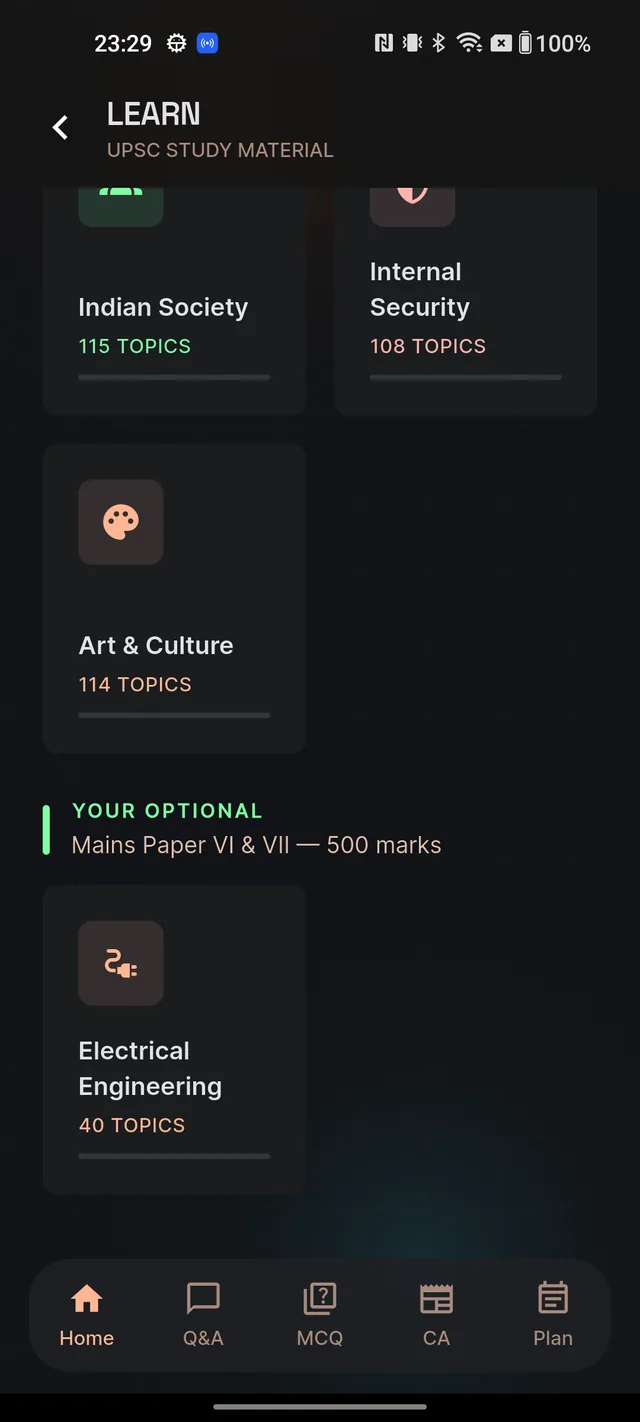
Two shelves: General Studies and your optional
The library has two sections, each with its own coloured header:
GENERAL STUDIES — marked "Mandatory for every aspirant". This is a two-column grid of the GS subjects every aspirant needs: Indian Polity, History, Geography, Indian Economy, Environment, Science & Tech, Ethics, International Relations, Indian Society and Internal Security.
YOUR OPTIONAL — marked "Mains Paper VI & VII — 500 marks". This shelf shows exactly one card: the optional subject you chose during onboarding. If you haven't chosen one yet, you'll see the hint "Pick your optional subject in Settings to see it here." — see Profile and settings for how to set it.
Reading a subject card
Every subject card tells you three things at a glance:
- Subject name and icon — the name renders in your exam language (English or Hindi).
- Topic count — a line such as "24 TOPICS" showing how many study notes that subject contains.
- Progress bar — a thin bar showing completed topics out of the total. This is your personal progress, so two aspirants see different bars on the same subject.
Inside a subject: the topics list
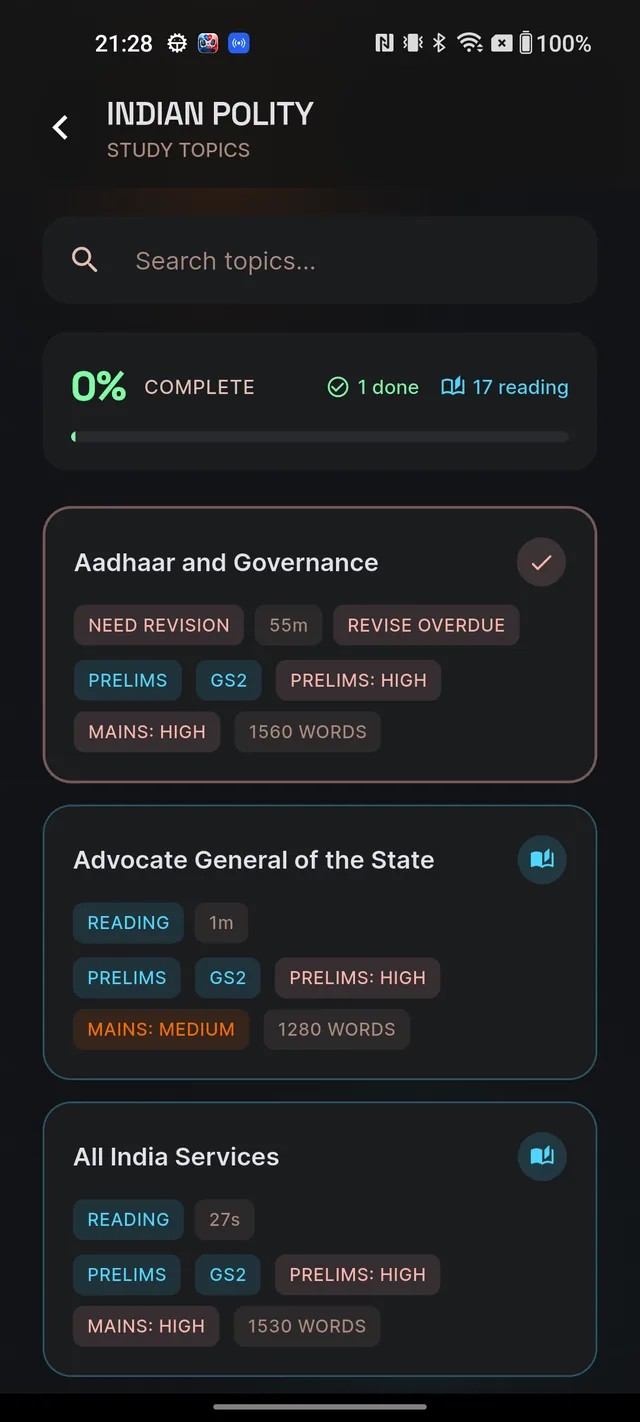
Tap any subject card to open its topics list. The header shows the subject name in capitals with the subtitle STUDY TOPICS. At the top sits a search field — covered in Find topics: search & recommendations — and below it a progress card with a large percentage next to the COMPLETE label, plus two mini-stats: how many topics are "done" (check icon) and how many are "reading" (book icon).
Then come the topic cards, one per study note. Each card can show:
- The topic title, in your exam language.
- A completion tick — a circular check icon once you've marked the topic complete. Its colour reflects the confidence you chose at completion: red means you asked for early revision, blue means understood, saffron means mastered.
- An open-book icon with a READING badge — you've opened this note but haven't completed it yet. Cards can also show the time you've spent on the note so far.
- Revision reminders — badges like REVISE TODAY, REVISE TOMORROW or REVISE OVERDUE (shown in red when a revision is due or overdue).
- Exam-fit badges — the GS paper (for example "GS2"), a Prelims and Mains relevance level such as PRELIMS: HIGH and MAINS: MEDIUM, and the note's word count.
Tap any topic card to open its study note — Reading a study note walks through everything inside.
If a list ever fails to load (for example on a weak connection), you'll see "Failed to load subjects" or "Failed to load topics" with a Retry button — tap it once your connection is back.
Frequently asked questions
Where do I find Dooit's study notes?
From the Home tab, scroll to QUICK LINKS and tap Study Material. That opens the Learn library with every subject and its notes.
Why don't I see my optional subject in Learn?
The YOUR OPTIONAL shelf shows the one optional subject you picked during onboarding. If you haven't picked one yet, the app asks you to choose it in Settings first.
What do the tick and book icons on a topic card mean?
A circular tick means you completed that topic — its colour shows the confidence you chose (red for needs revision, blue for understood, saffron for mastered). An open-book icon means you started reading but haven't marked it complete.
Does browsing and reading notes use my daily AI actions?
No. Browsing subjects, opening topics and reading notes is unmetered on every plan, including Free.
Didn’t find what you needed? We are a small team and we read every message.
Email supportBack to Help Center