Reading a study note
A Dooit study note is more than a page of text. It tracks how far you've read, lets you tick off sections one by one, keeps your personal margin notes, and ends with a MARK COMPLETE step that schedules the topic's revision for you. Here is everything on the screen and what each control does.
A quick tour, top to bottom
Open any topic from a subject's list (see Browse subjects & topics) and you'll find, from top to bottom:
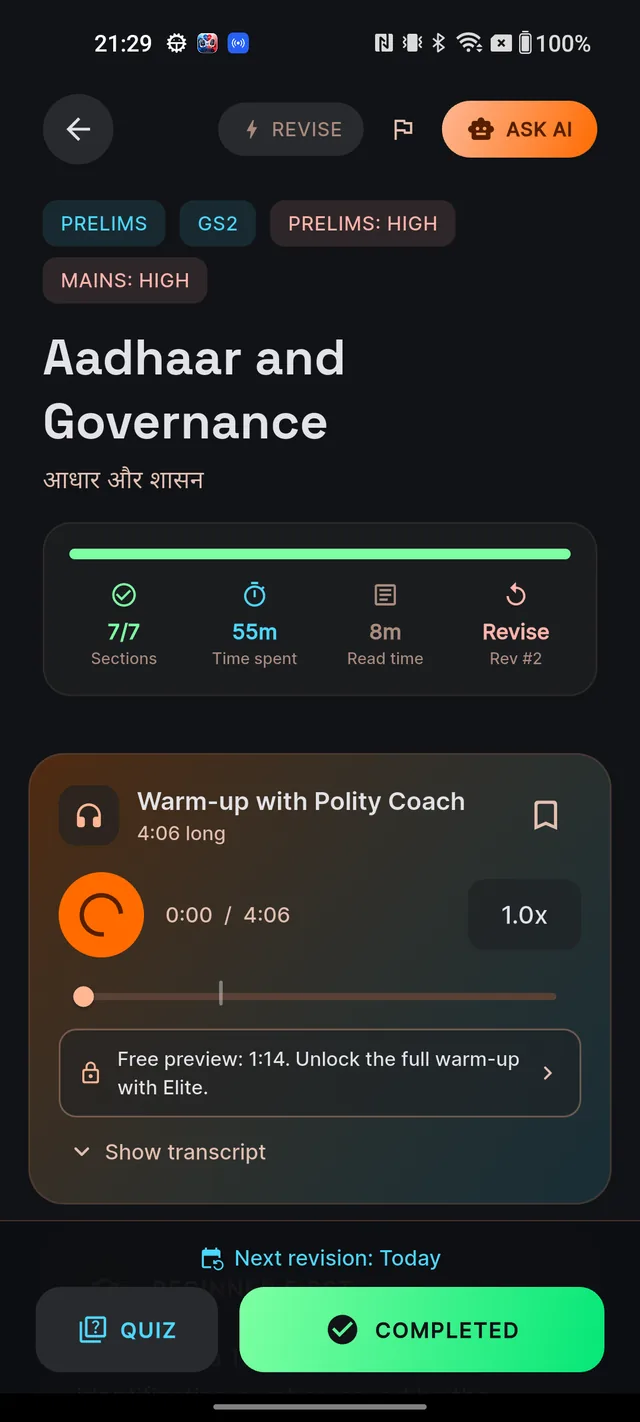
- A thin reading progress bar along the very top that fills from left to right as you scroll the note.
- The top bar — a back arrow, the REVISE toggle pill, a flag icon for reporting, and the ASK AI pill.
- Badges — the GS paper (for example "GS2") plus Prelims and Mains relevance levels.
- The title in your exam language, with the other language shown as a muted line underneath.
- A stats card — sections done (with the Sections label), a live Time spent counter, a Read time estimate, and — once you've completed the topic — your confidence chip with a revision count.
- The audio warm-up card, if this topic has a spoken introduction — see The audio warm-up coach.
- The BEGINNER FIRST card — a short orientation built from the note itself: a one-line overview, MUST KNOW FIRST bullets, WHAT UPSC ASKS bullets drawn from past-paper connections, and red COMMON TRAPS bullets. (Some notes don't show this card — that's normal.)
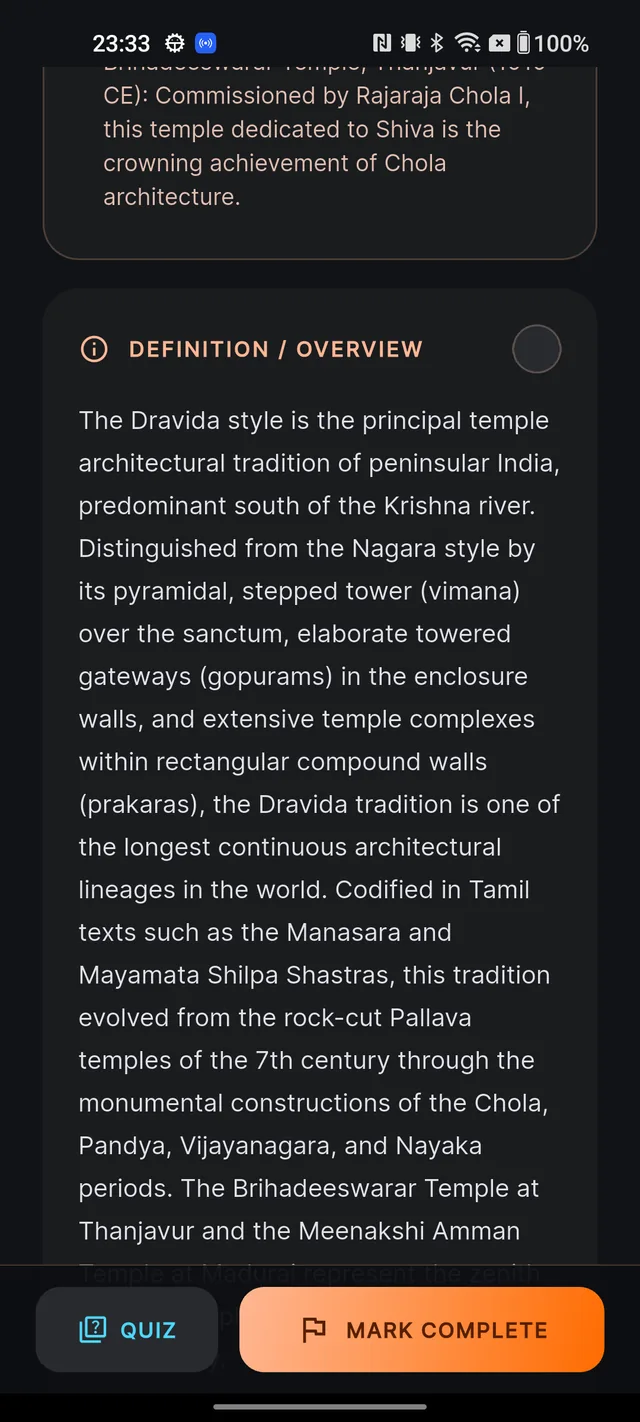
- The sections — the body of the note, one card per section, usually running from definition and overview through explanation, key points, examples, UPSC relevance and related topics.
- The MY NOTES card and, where available, a SOURCE REFERENCES list at the end.
Tick sections as you finish them
Every section card has a completion circle on its right. Tap it when you've finished that section — you'll see a brief saving spinner, then the circle turns into a check and the card gets a tinted background. Tap again to un-tick. These ticks drive the sections counter, so you can put a note down and see exactly where to resume.
Time tracking is automatic: opening a note marks the topic as "reading" on the topics list, and a timer quietly counts your reading time while the screen is open.
Three tools in the top bar
REVISE — quick-skim mode
Tap the REVISE pill and the note collapses to only its key points, examples and UPSC relevance sections — ideal for a fast revisit before a quiz or a revision session. Tap it again to restore the full note. It's a pure display filter; nothing is saved.
ASK AI — clear a doubt without leaving your flow
The ASK AI pill jumps you to the Q&A tab so you can ask Dooit's AI about whatever stopped you. See Ask your first question — note that Q&A has its own daily limits per plan (Free vs paid).
The flag — report something wrong
If a fact looks off, tap the flag icon to open the report sheet. Our team verifies reports against authoritative sources and you'll see the finding in your Profile. Full walkthrough: Report wrong content.
MY NOTES — your personal scratchpad
Near the end of the note sits MY NOTES, a private notebook attached to this topic. Type into the box — the hint reads "Jot a thought, mnemonic, or connection..." — and tap the plus button; a SAVED badge flashes when it's stored. Each saved note shows when you wrote it, an "edited" marker if you changed it, and edit and delete icons. Deleting asks you to confirm ("Delete this note?") because it cannot be undone. If saving fails, you'll see "Couldn't save note. Check your connection and try again."
Finish with QUIZ and MARK COMPLETE
A floating bar sits at the bottom of every note with two buttons:
- QUIZ launches an MCQ quiz already scoped to this note's subject and topic — a fast way to test what you just read. See Start a quiz.
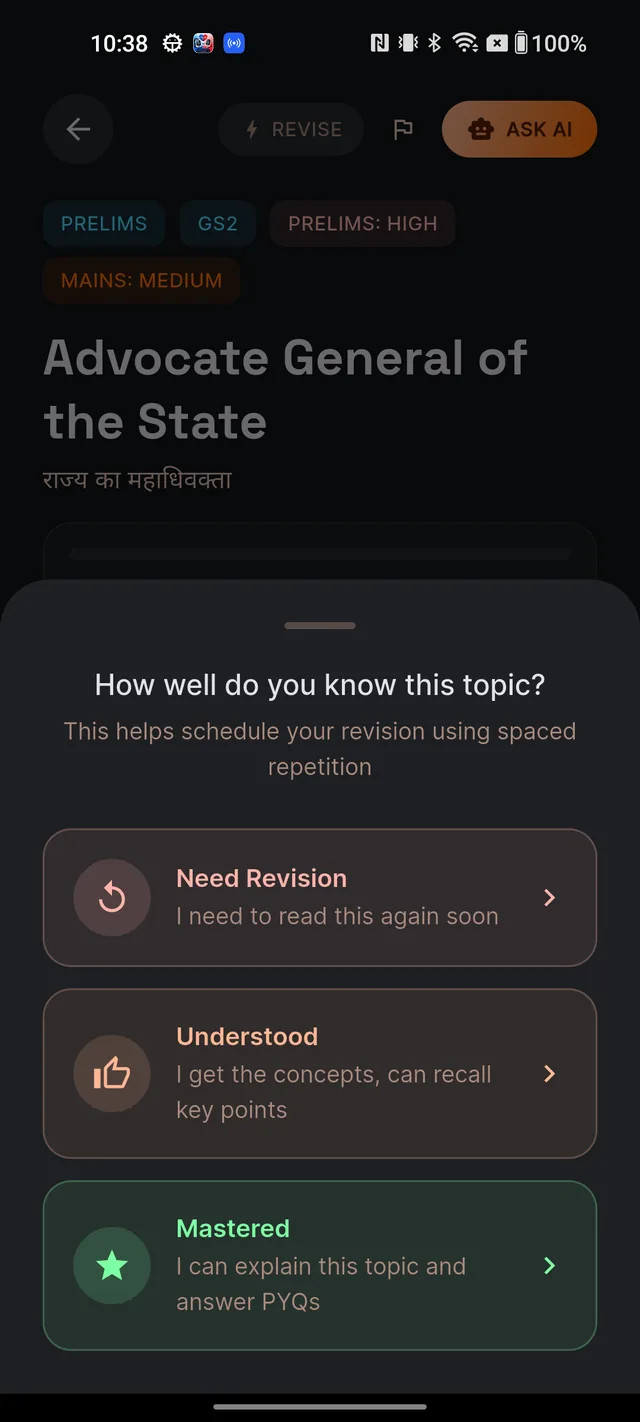
- MARK COMPLETE opens the confidence sheet: "How well do you know this topic?" with the line "This helps schedule your revision using spaced repetition".
- Pick one of three honest answers: Need Revision ("I need to read this again soon"), Understood ("I get the concepts, can recall key points"), or Mastered ("I can explain this topic and answer PYQs").
The moment you choose, the topic is marked complete, a revision is scheduled, and a toast confirms "Topic completed! Revision scheduled." The button changes to COMPLETED and a "Next revision" date appears above the bar — shown as "Today", "Tomorrow" or "In … days". Your choice also colours the topic's tick on the list (red, blue or saffron) and sets how soon revision comes around: Need Revision brings the topic back soonest, Mastered gives it the longest gap. Those due topics surface in Revise today.
Frequently asked questions
What does the REVISE button at the top of a note do?
It switches the note into a quick-skim mode that shows only the key points, examples and UPSC relevance sections. Tap it again to bring the full note back. Nothing is saved or changed.
How is my next revision date decided?
When you tap MARK COMPLETE, you rate your confidence — Need Revision, Understood or Mastered. The app uses that rating with spaced repetition to set the date shown as Next revision under the bottom bar.
Why can't I take a screenshot of a note?
Study notes are protected content, so the screen blocks screenshots by design. Use the MY NOTES card to capture anything you want to keep in your own words.
Why is the note title shown in two languages?
That's deliberate. The title appears in your exam language with the other language as a muted line beneath, so Hindi-medium readers can anchor English terms and vice versa.
Does reading a note use my daily AI actions?
No — reading is unmetered. Only the ASK AI and QUIZ buttons hand you over to Q&A and MCQ, which have their own plan limits.
Didn’t find what you needed? We are a small team and we read every message.
Email supportBack to Help Center