Find topics: search & recommendations
A subject can hold dozens of study notes, so Dooit gives you two fast ways to land on the right one: a search bar at the top of every topic list, and a recommended strip that highlights the best-matching chapters when you arrive from a study-plan task. Both take seconds to use.
Search inside a subject
- Open a subject's topic list: from Home, tap Study Material under QUICK LINKS, then tap a subject (see Browse subjects & topics).
- Tap the field at the top with the hint Search topics….
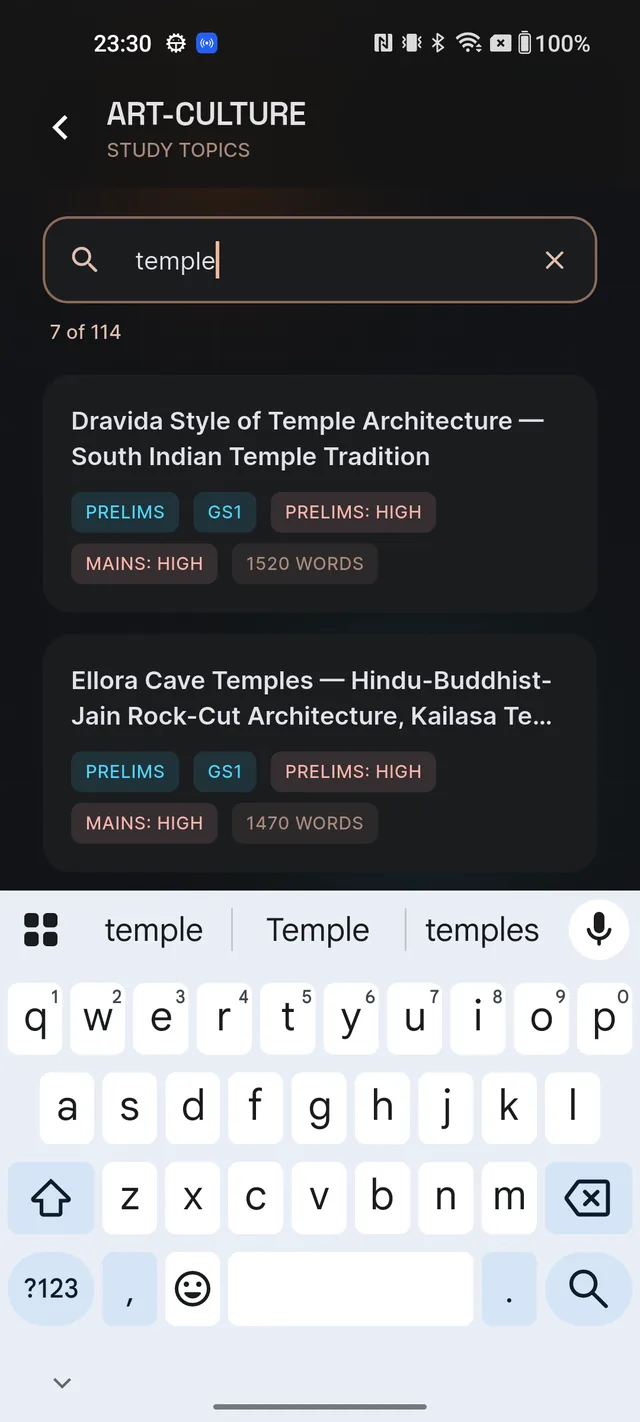
- Type a word or two. Results filter instantly as you type — no internet needed for the search itself.
The matching is forgiving by design:
- English and Hindi both work. The search reads each topic's title in both languages, so type in whichever comes to mind.
- Word order doesn't matter, and partial words match. Typing "fund right" finds "Fundamental Rights".
- A live counter under the field shows how many topics match, such as "6 of 42".
- An X button appears while you type (its tooltip says Clear search) — tap it to clear the query and restore the full list.
While a search is active, the list shows only matches in their catalogue order; the subject progress card and any recommended ordering are temporarily hidden until you clear the search.
When nothing matches
If your query matches no topic, you'll see a message like "No topics match" followed by your query, with the hint "Try a shorter or different word." Three quick fixes:
- Shorten the query to a single strong keyword.
- Try the other language — sometimes the term you remember is the English one, sometimes the Hindi.
- Check you're in the right subject. Search only looks within the subject you have open — there is no all-subjects search in the app — so a Polity term won't turn up while you're inside History.
Arriving from your plan: TODAY'S TARGET
When you tap START on a study task in your plan (see Today's tasks and START), the app hands you straight into Learn. If the task clearly maps to one chapter, you may land directly on that note. When several chapters could fit, you land on the subject's topic list with a briefing banner at the top:
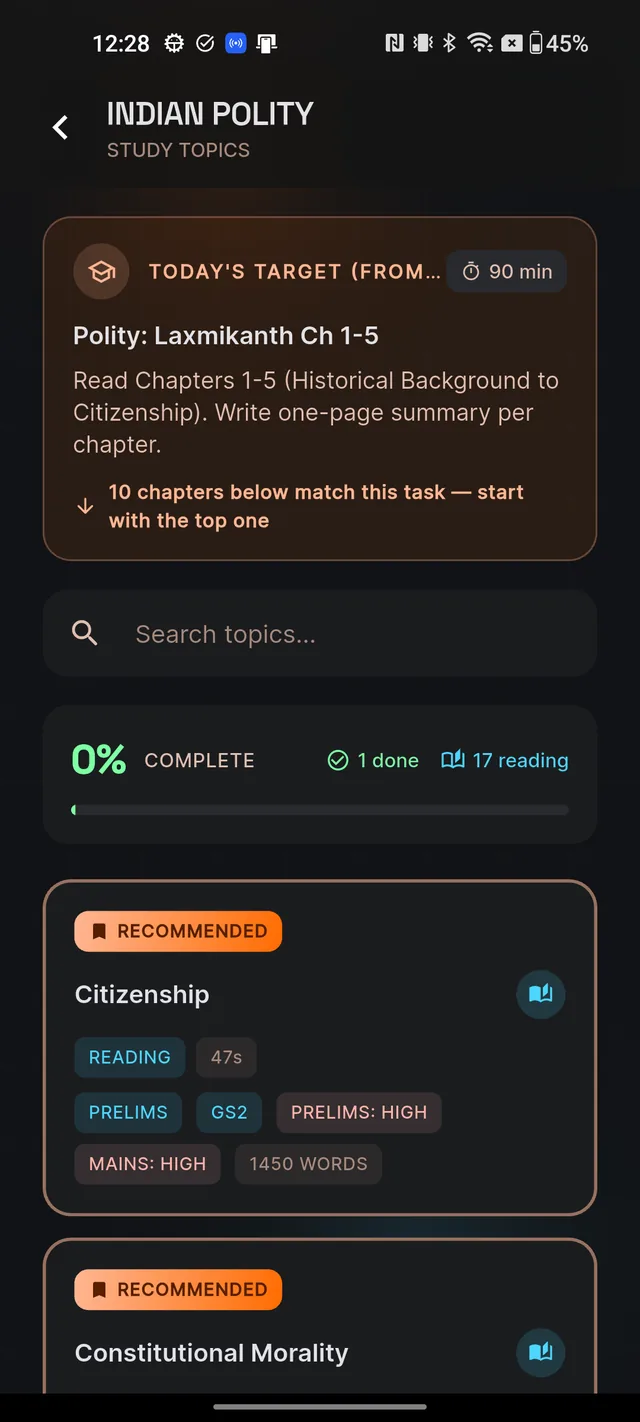
- The banner is badged TODAY'S TARGET (FROM YOUR PLAN) and shows your task's title, its description and the estimated minutes.
- A helper line tells you where to begin — for example "1 chapter below matches this task — start there", or, with several matches, that the top one is the place to start. If nothing in the library matches yet, it says "Pick the closest chapter below — your plan-mapped chapter isn't in our library yet."
- The matching chapters float to the top of the list, each carrying a gradient RECOMMENDED chip and a highlighted border. The best match sits first.
Frequently asked questions
Can I search topics in Hindi?
Yes. The search matches topic titles in both English and Hindi, whichever language you type in.
Can I search every subject at once?
No. Search lives inside each subject's topic list and only looks within that subject. Open the right subject first, then search.
Why don't I see the TODAY'S TARGET banner?
It appears only when you arrive at the topic list by tapping START on a study task in your plan. Opening Learn directly from Home shows the plain list.
What does the RECOMMENDED chip on some topics mean?
Those are the chapters that best match the plan task you started from. They float to the top of the list, best match first.
Where did the recommendations go while I was typing?
Searching temporarily hides the banner and the recommended ordering so you see pure matches. Clear the search and they come right back.
Didn’t find what you needed? We are a small team and we read every message.
Email supportBack to Help Center