Today's tasks & the Start button
Your study plan shows up each morning as a short, concrete to-do list. Each task has a START button that drops you exactly where the work happens — no hunting through menus — and a simple circle to tick it done.
Where today's tasks live
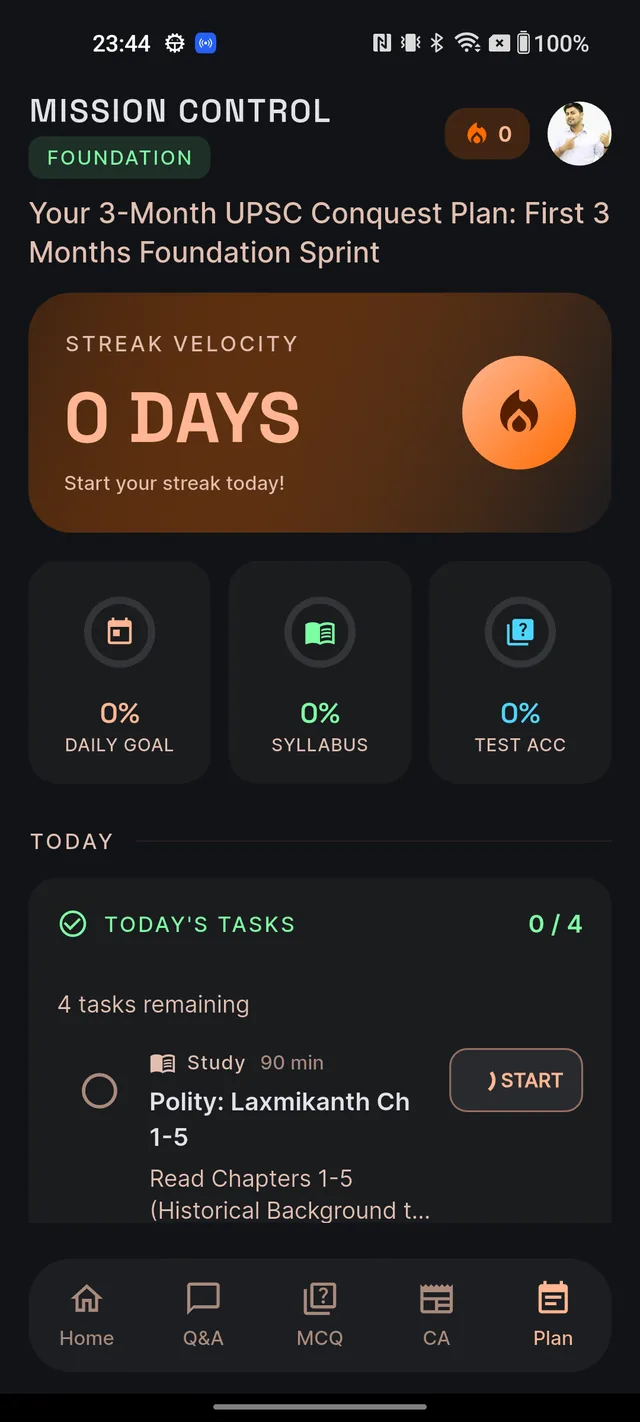
Open the Plan tab from the bottom navigation and scroll to the TODAY section. The TODAY'S TASKS card shows a done/total counter (for example "2 / 5"), a progress bar, and the list of tasks. When everything is ticked, the card celebrates with All tasks completed for today!
The Home screen mirrors the same numbers — a progress card labelled TASKS TODAY — and tapping it brings you back to the Plan tab. Just below the task list you will also find the Revise Today card, which is your spaced-revision queue — see Revise Today.
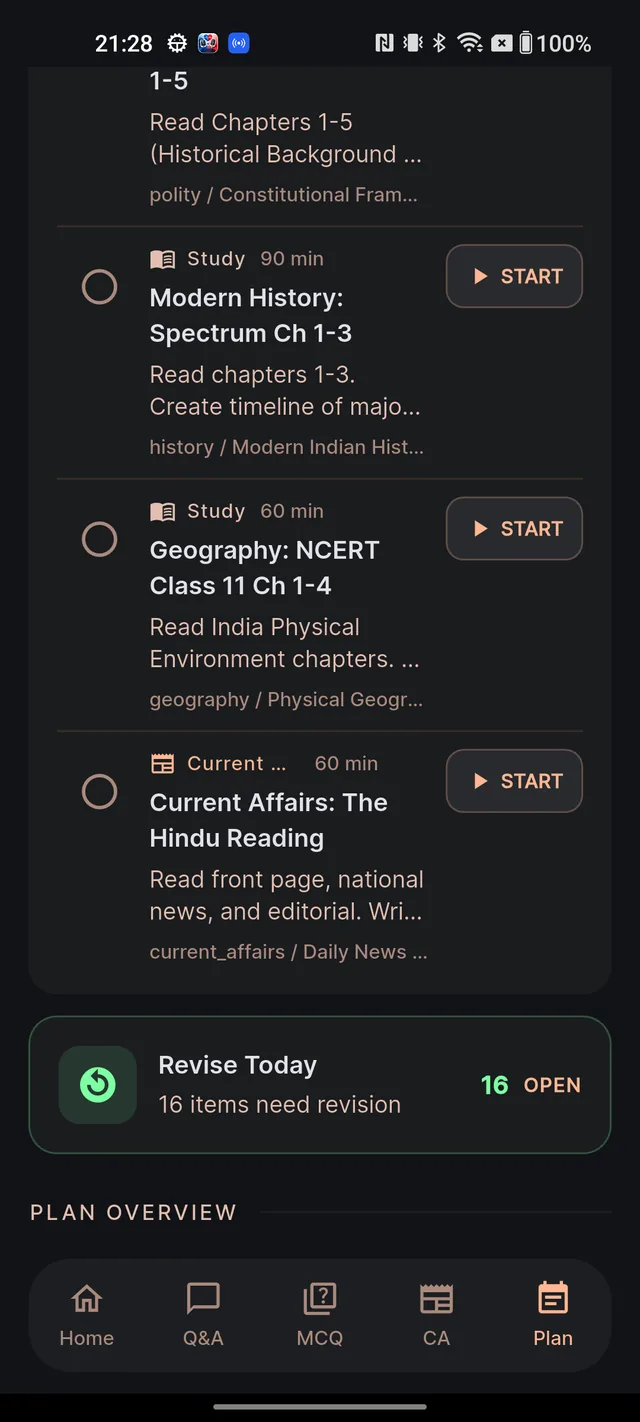
Reading a task card
Every row in the list shows:
- A circle on the left to toggle done/not done (long-press tooltips read Mark done and Mark not done).
- A type chip: Study, Revision, MCQ or Current Affairs.
- An estimated time, like "90 min".
- The title and a short description, plus a subject/topic line.
- The START button on the right.
What tapping START does
START is a smart shortcut: Dooit reads the task and routes you to the right destination. While it works, the play icon on that one row becomes a small spinner — only that row is paused; everything else stays tappable.
- MCQ task (for example "Solve 20 MCQs…") — opens a quiz already set up to match the task: the right question count, difficulty, whether it is PYQ-only, and aimed at the topics you were reading today. See Start a quiz.
- Current Affairs task — opens the Current Affairs feed.
- Revision task — opens your revision queue.
- Study task — one of three things happens, depending on how confident the match is:
- Instant open — when there is one clear match, the study note opens directly in the reader.
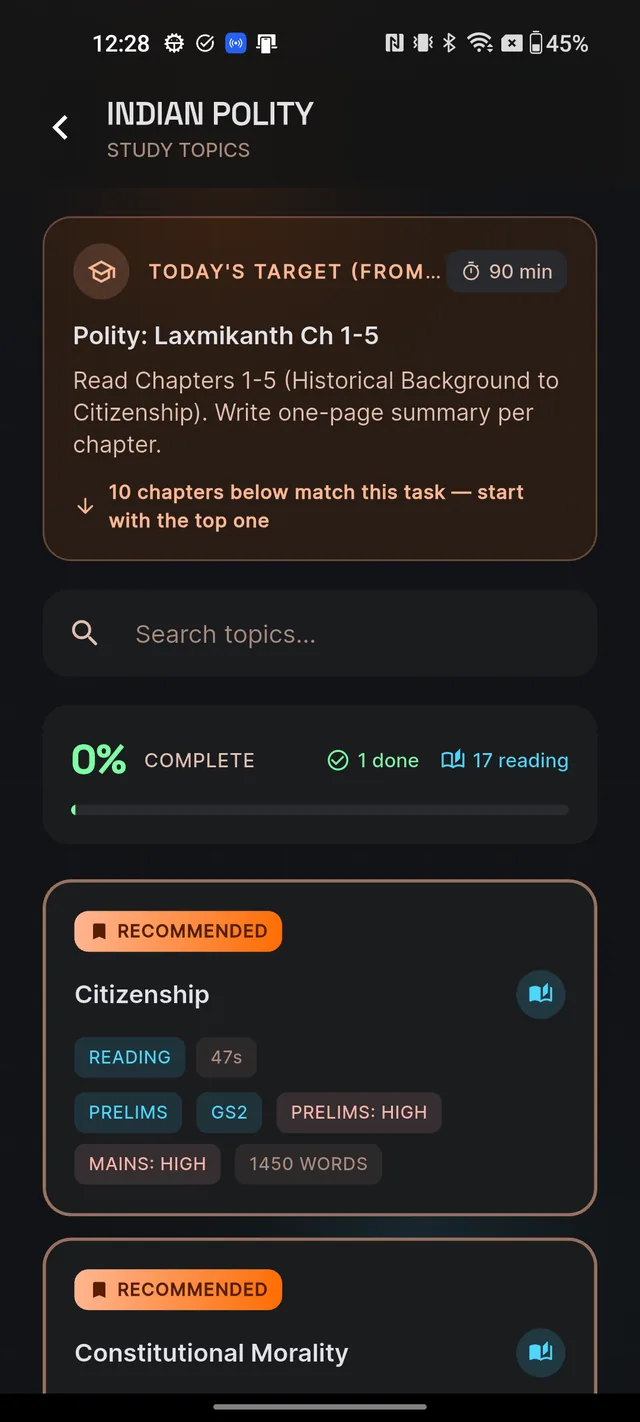
- A short spinner, then a guided chapter list — when several chapters fit, you land on the subject's topics screen. A banner at the top reads TODAY'S TARGET (FROM YOUR PLAN) and tells you how many chapters below match the task, and the best picks carry a RECOMMENDED badge. Start with the top one.
- An honest miss — if your exact chapter is not in the library yet, the topics screen says so plainly: "Pick the closest chapter below — your plan-mapped chapter isn't in our library yet."
Two special cases worth knowing:
- Optional subjects. Tap START on a task for a subject like Philosophy and you may see a message that the subject "isn't in our study library yet", with a BROWSE LIBRARY shortcut. That is expected, not a bug — study from your own books and mark the task done with the circle. Your plan still tracks it.
- Connection trouble. If the chapter list cannot load, you are taken to the subject library instead of being left stranded.
Marking a task done
- Tap the circle on the left of the task. It fills with a check, the title gets a strikethrough, and the row fades slightly.
- The today counter, progress bar and your progress rings update immediately.
- Changed your mind? Tap the circle again to un-mark it.
If the update cannot be saved you will see "Couldn't update the task. Please try again." — usually a network blip; just retap.
Frequently asked questions
What does the START button do?
It takes you straight to the right place for that task — the matching study note (or a chapter list with RECOMMENDED picks), an MCQ quiz set up to match the task, the Current Affairs feed, or your revision queue.
Do I have to tap START to complete a task?
No. The circle on the left of each task marks it done or not done, completely independently of START. You can study from your own books and still tick the task off.
Why did START show me a list of chapters instead of opening a note?
When there is one confident match, the note opens directly. When several chapters fit, Dooit shows the subject's chapter list with its best picks badged RECOMMENDED so you choose.
Why does my Optional subject task say it isn't in the library yet?
Study notes for some Optional subjects are still being built. Your daily plan still tracks the task — study from your own material and mark it done with the circle.
Does START work on a free account?
Yes. START works on every plan and every account.
Didn’t find what you needed? We are a small team and we read every message.
Email supportBack to Help Center