Focus sessions
Focus Mode turns your Android phone into a distraction-free study machine for a block of time you choose: notifications silenced, the phone locked to Dooit, and an honest count of every time you wandered off. It is completely free for every account — no limits, no upgrade prompts.
What Focus Mode does
A session has three parts, and you control all of them:
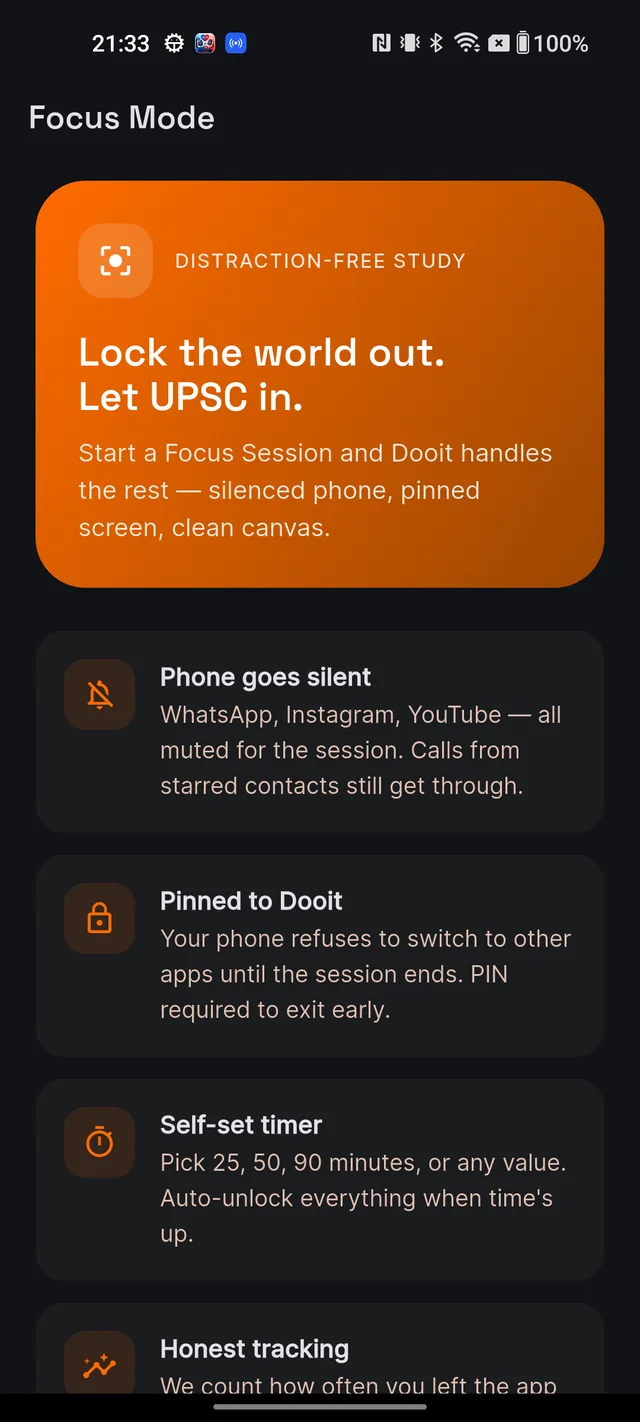
- Phone goes silent (optional) — WhatsApp, Instagram, YouTube — all muted for the session. Calls from starred contacts still get through.
- Pinned to Dooit — your phone refuses to switch to other apps until the session ends. Your phone PIN is required to exit early.
- Self-set timer — pick 25, 50, 90 minutes or any custom value. Everything unlocks automatically when time is up.
And one honest extra: Dooit counts how often you left the app and how much time you lost — to help, not to shame. It never knows which app you opened, only that you left.
Start a session
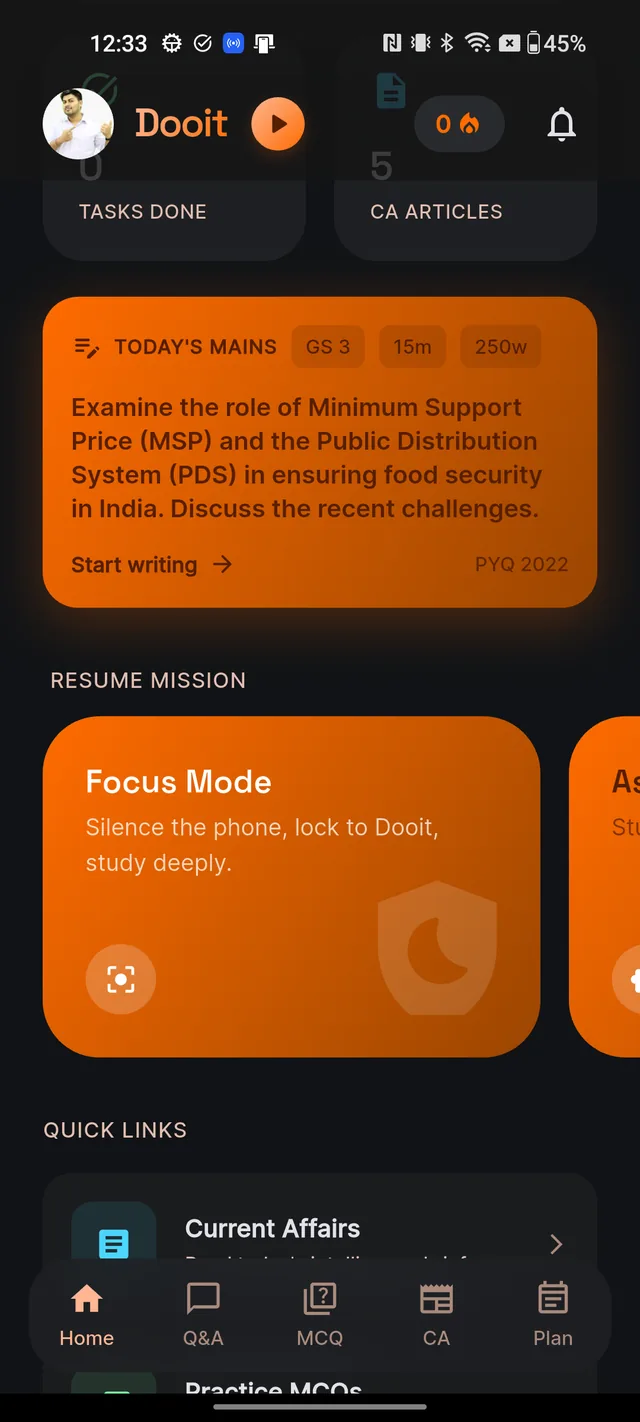
- On Home, scroll to the RESUME MISSION carousel and tap the orange Focus Mode card ("Silence the phone, lock to Dooit, study deeply.").
- (Optional, one-time) If you want auto-silencing, the card Allow Dooit to silence the phone appears — tap Open settings and grant Do Not Disturb access. You can skip this entirely; the timer and pinning still work, and the session will simply show Phone not silenced.
- Under PICK YOUR SESSION LENGTH, choose 25 min, 50 min, 90 min, or Custom for a slider from 15 to 180 minutes.
- Tap the start button — for example START 25-MIN SESSION.
The "App is pinned" message
Right after starting, Android may briefly show a system dialog saying "App is pinned". As the intro screen itself puts it: "Your phone PIN can unlock the session early. Emergency calls always get through. Android will briefly ask 'App is pinned' — tap OK to continue. That dialog is an OS message, not part of Dooit."
So: tap OK, and study. Nothing is wrong, and you are never trapped — your own PIN or pattern unpins the phone any time.
During your session
Starting a session drops you on Home on purpose — the idea is to study notes, MCQs or current affairs while the timer runs quietly in the background.
- For the first few seconds an orange pill shows Focus Mode is ON with a QUIT button, then it collapses into a small pulsing icon you can drag along the screen edge. There is deliberately no visible countdown — a ticking timer is the enemy of focus.
- Tap the icon to re-expand the pill; tap the pill itself to open the full-screen timer — a countdown ring, an Elapsed readout, status pills like Phone silenced / App pinned, and a Quit session button. The back button returns you to whatever you were studying; the session keeps running.
- The timer never pauses. Leaving the app does not stop the countdown — every exit of a second or more counts as one distraction, and the time away adds up against your score.
Ending a session and reading your summary
When the timer hits zero, everything unlocks automatically and the summary appears. To end early instead, tap QUIT on the pill (or Quit session on the timer) — a dialog asks End the session? with Keep going and End anyway.
Either way, the summary shows:
- FOCUS SCORE — the share of your planned time you actually spent inside Dooit. Green at 90%+, amber from 60%, red below.
- Three stats: Focused time, Times you left and Time away.
- A short coach note when you got distracted — practical advice, never a lecture.
From there, DONE returns you Home, or Start another session goes straight back to the picker.
Frequently asked questions
Why can't I find Focus Mode on my iPhone?
It is Android-only — iOS does not let apps silence the phone or pin the screen. Use your iPhone's own Focus mode and study in Dooit alongside it.
Do I have to grant the Do Not Disturb permission?
No. The timer and screen pinning work without it — your phone just will not be auto-silenced, and the session shows "Phone not silenced".
My phone said "App is pinned" — what is that?
That is an Android system message, not Dooit. Tap OK and carry on. Your phone PIN can always unpin early, and emergency calls always get through.
How do I end a session early?
Tap the floating focus icon, tap QUIT, then confirm with End anyway. Or open the full timer and tap Quit session.
What is the Focus Score?
The share of your planned session you actually spent inside Dooit. Leaving the app counts as a distraction and lowers the score — the timer never pauses.
Where can I see my past focus sessions?
You cannot, currently. The summary is shown once, right after the session ends — there is no history list. Treat it as in-the-moment feedback.
Didn’t find what you needed? We are a small team and we read every message.
Email supportBack to Help Center