Generate your AI study plan
Every Dooit account gets its first AI study plan free. You answer six quick questions about your preparation, and Dooit builds a personalised roadmap that ends exactly at your Prelims date — then turns it into a daily task list you can act on every morning.
What Dooit asks before building your plan
Your plan is only as good as what you tell us. Onboarding collects six quick answers — your exam language, preparation stage, educational background, daily study hours, target exam year and optional subject. The full walkthrough of those screens, with every option explained, is in Set up your exam profile; the two that shape your plan most are your daily hours (the plan paces itself around this number) and your target year (which decides how long the plan can be).
Generate the plan, step by step
- Work through the six onboarding steps, tapping CONTINUE after each one.
- On the final step, tap GENERATE MY PLAN.
- The button briefly changes to GENERATING PLAN..., and within about a second you land on the Home screen. The real work continues in the background.
- Watch the slim status banner that appears just above the bottom navigation — it tracks your plan from here.
The wait — what the banner tells you
Plan generation usually finishes in under a couple of minutes. You can browse notes, read current affairs or do anything else in the app while you wait — the banner keeps you posted:
- Building — an orange banner with a spinner: Crafting your study plan… Tapping it shows a small message confirming the plan is on its way.
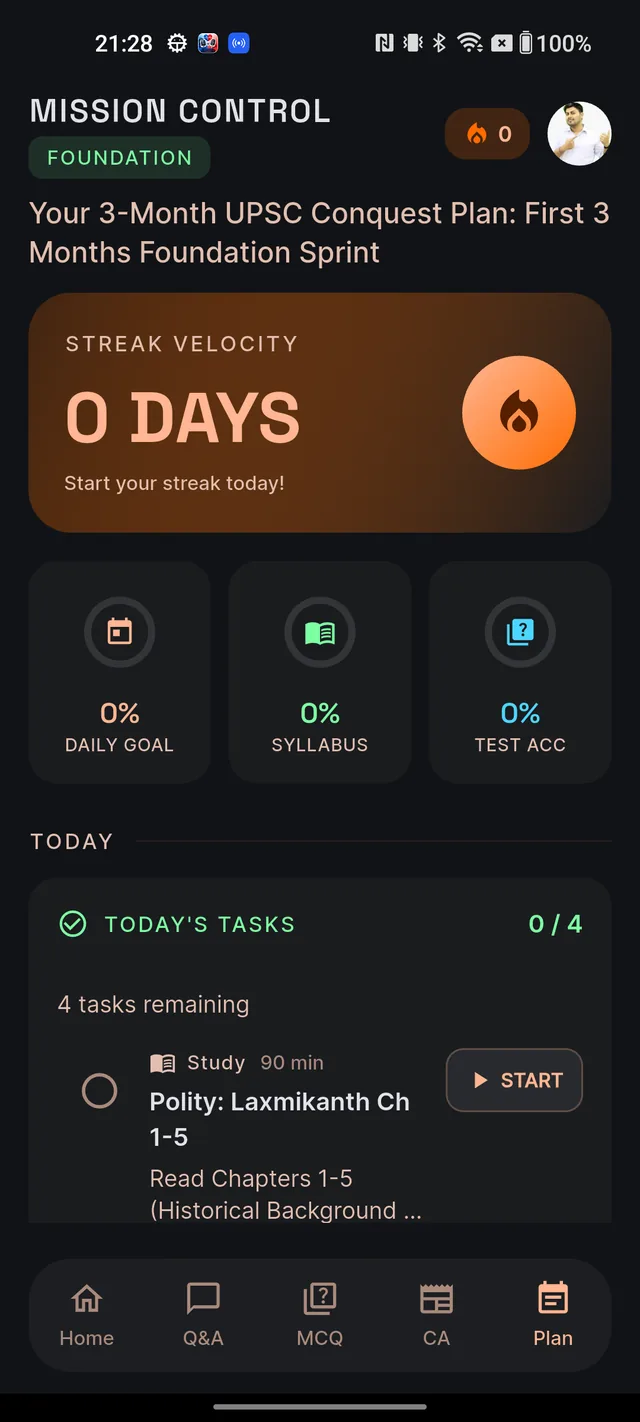
- Ready — a green banner: Your study plan is ready — tap to view. Tap it to open the Plan tab. It quietly disappears after a minute if you ignore it.
- Failed — a red banner: Plan generation failed — tap to retry. One tap queues a fresh attempt at no cost.
Every banner has a small × if you want to dismiss it.
How long and what shape your plan will be
Dooit does not pad your plan to look impressive. Three rules decide its shape:
- Anchored to the real exam. The plan ends at the actual Prelims date — late May of your target year — not at a vague "next year".
- Months are counted down, never up. Only the full months genuinely remaining are planned. That is why picking "UPSC 2027" in mid-2026 gives you roughly eleven months, not twelve.
- The shape adapts to your runway. Plenty of time means a full foundation-building-revision arc. A few months means a revision-and-test-heavy schedule. Very close to the exam, the plan switches to sprint mode with daily PYQ practice.
Once the plan exists, your day-to-day experience is the daily task list — see Today's tasks & the Start button.
Plan tab empty?
If the Plan tab shows No study plan yet with a GENERATE PLAN button, tapping it takes you back into the onboarding questionnaire. That is deliberate — the plan needs your profile answers to be built. Since your first plan is free, completing it costs nothing.
Want to rebuild an existing plan instead? That works differently — read Recalibrate your plan.
Frequently asked questions
Is the study plan free?
Yes. Every account gets its first AI study plan free — finish the onboarding questions and Dooit builds it for you at no cost. The plan you receive stays yours to use.
How long does plan generation take?
Usually under a couple of minutes. You do not have to wait on the screen — keep using the app, and the status banner above the bottom navigation turns green when your plan is ready.
Why is my plan shorter than I expected?
The plan is anchored to the real Prelims date — late May of your target year. Dooit counts only the full months actually remaining, never rounding up, so the roadmap always fits the time you truly have.
Can I get my plan in Hindi?
Yes. The plan is generated in your exam language. Pick Hindi in onboarding, or switch language later when you regenerate, and every task is written in Hindi.
What if generation fails?
A red banner appears reading "Plan generation failed — tap to retry". Tap it and a fresh attempt is queued. A failed attempt costs you nothing.
Didn’t find what you needed? We are a small team and we read every message.
Email supportBack to Help Center