Start a quiz (AI & PYQ modes)
Starting an MCQ quiz on Dooit takes exactly one tap: choose a subject and a 10-question quiz begins immediately — there is no setup screen asking for question count or difficulty. This guide walks you through the subject list, explains the AI and PYQ badges you will see on questions, and shows which quizzes use your daily AI allowance (PYQ drills never do).
Open the MCQ section
- Tap MCQ in the bottom navigation bar. You can also get here from the Home quick link Practice MCQs.
- You land on the subject list, headed CHOOSE YOUR BATTLE. The flame badge at the top shows your study-streak day count from your study plan — it is not an MCQ score.
- Use the Search subjects... bar to filter by name, or switch between the tabs All Subjects, Core Modules, Current Affairs and Mock Series to narrow the grid.
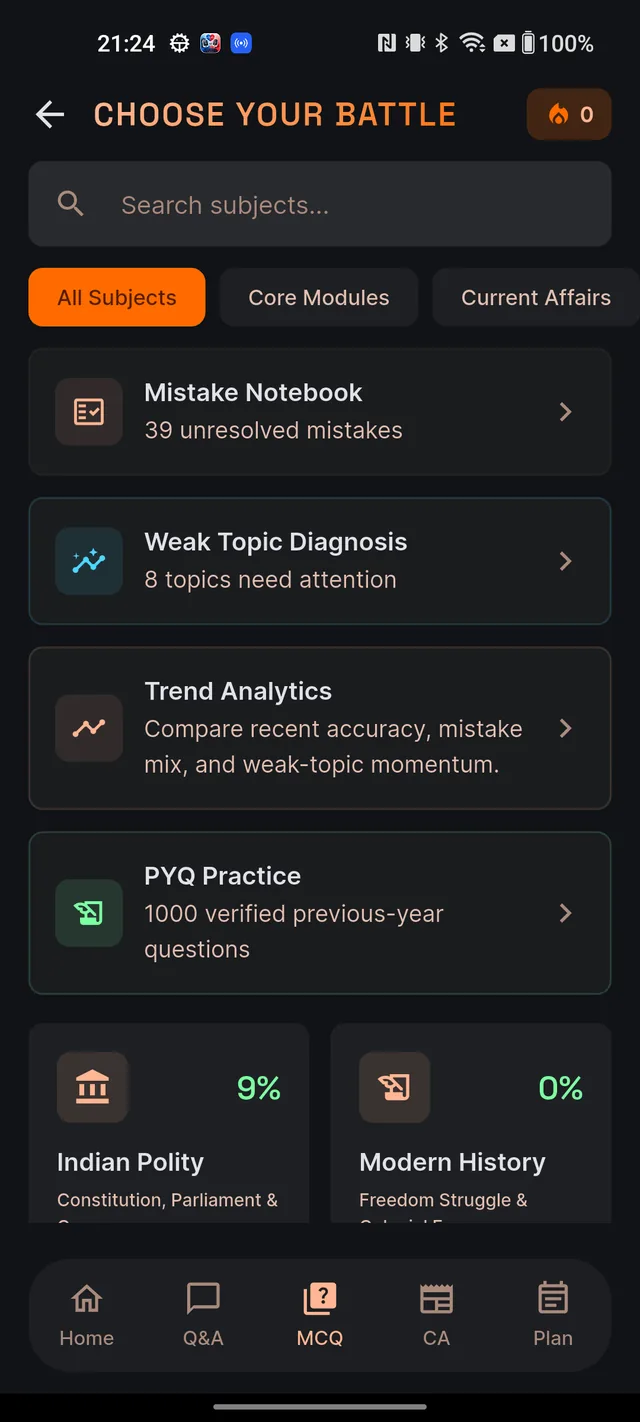
Above the subject grid sit four feature cards: Mistake Notebook, Weak Topic Diagnosis, Trend Analytics and PYQ Practice. Each has its own guide — see The Mistakes Notebook, Weak topics & trends and PYQ coverage.
Tap a subject — the quiz starts instantly
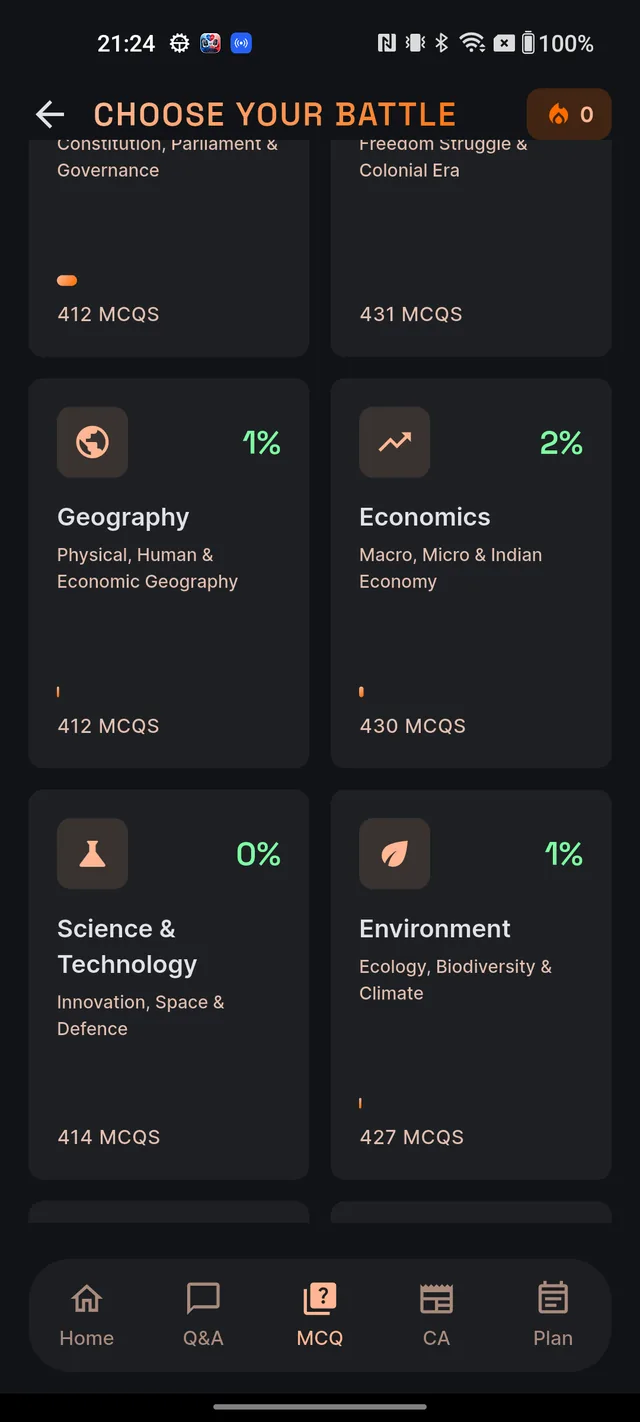
Each subject card in the grid shows the subject's icon and name, a short description, a completion percentage in the top-right corner (how much of that subject's question bank you have covered), a progress bar, and a count like 240 MCQS — the total questions available for that subject.
Tapping a card starts the quiz right away. The defaults are 10 questions on that subject, with a mix of difficulties drawn from the bank. If a subject card is dimmed with a lock icon, it is temporarily locked — the card shows the reason in place of its description, and tapping does nothing.
AI questions vs real PYQs
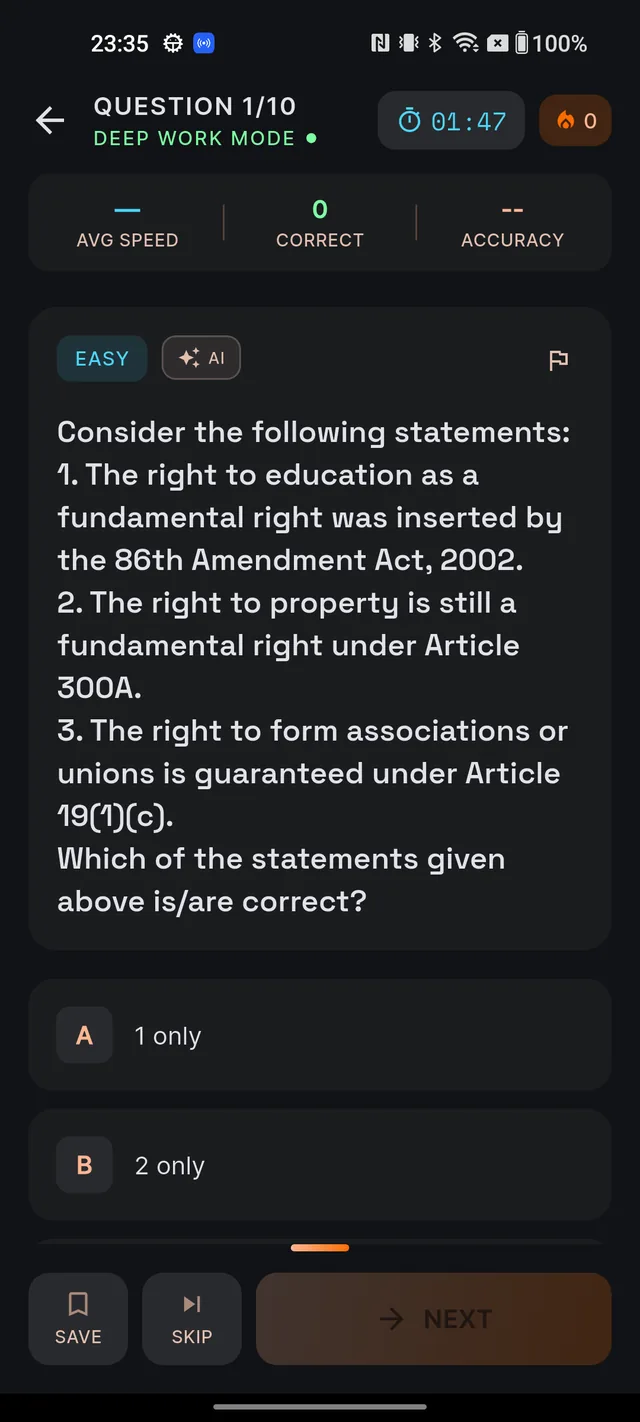
Every question in a quiz carries a difficulty pill (EASY, MEDIUM or HARD) and a source badge. Tap any badge to see what it means:
- PYQ badge — a real previous-year question. The label names the actual paper, for example UPSC CSE Prelims 2019 Q42 (or simply UPSC PYQ when the exact paper reference is not stored). A green badge with a verified icon means it has been editorially checked — its tooltip reads Verified UPSC previous-year question. A blue badge means the source is mapped but the editorial check is still pending.
- AI badge — our AI drafted this question to match your topic. Its tooltip says it plainly: use AI questions for practice, and rely on PYQ-tagged questions for the real exam pattern.
Where each quiz mode starts
The quiz header tells you which mode you are in:
- DEEP WORK MODE — the standard quiz you get by tapping a subject card.
- PYQ MODE — previous-year questions only. You start these from the PYQ Practice card, never from a subject card. PYQ mode never tops up with AI questions — if a topic has only 6 verified PYQs, you get a 6-question quiz. Full details in PYQ coverage.
- WEAKNESS DRILL — an adaptive quiz on one weak topic, launched from Weak Topic Diagnosis. See Weak topics & trends.
What uses your daily AI allowance
Practising questions that already exist in the bank — including every PYQ drill — is free and never touches your AI allowance. A quiz only spends an AI action when the bank does not have enough unseen questions for your subject or topic, so our AI has to generate fresh ones on the spot. If your plan's daily AI actions are used up, you will see a friendly screen telling you so — the rest of the app stays open, and you can keep practising the existing bank and PYQs while fresh AI resets the next day. See Free vs paid for what each plan includes.
Frequently asked questions
How do I start an MCQ quiz?
Open the MCQ tab and tap any subject card. The quiz starts immediately with 10 questions — there is no setup screen.
Can I choose how many questions are in a quiz?
Not from the subject list — every quiz starts with 10 questions by default. A study-plan task like "Solve 20 MCQs" can set a different count, up to 20.
Can I pick Easy, Medium or Hard?
Not manually. Every question shows its own difficulty pill, and Weakness Drills automatically choose a difficulty that matches your mistake pattern.
What do the "UPSC CSE Prelims" and "AI" badges on questions mean?
A PYQ badge means the question is from a real past UPSC paper, with the exam and year shown. The AI badge means our AI drafted the question to match your topic — good for practice, but rely on PYQ-tagged questions for the real exam pattern.
Do PYQ drills use my daily AI allowance?
No. PYQ drills come straight from the verified question bank and never trigger AI generation, so they are always free.
Why is a subject card greyed out with a lock?
That subject is temporarily locked. The card itself shows the reason, and tapping it does nothing until it unlocks.
Didn’t find what you needed? We are a small team and we read every message.
Email supportBack to Help Center