PYQ coverage
The PYQ Practice screen shows exactly how many verified real past-year questions Dooit holds for every subject and topic — and lets you drill them at any depth, from "all PYQs" down to a single topic. PYQ drills never mix in AI questions and never touch your daily AI allowance.
Open PYQ Practice
- Tap MCQ in the bottom navigation bar.
- Tap the PYQ Practice card — its subtitle shows the total count of verified previous-year questions in the bank.
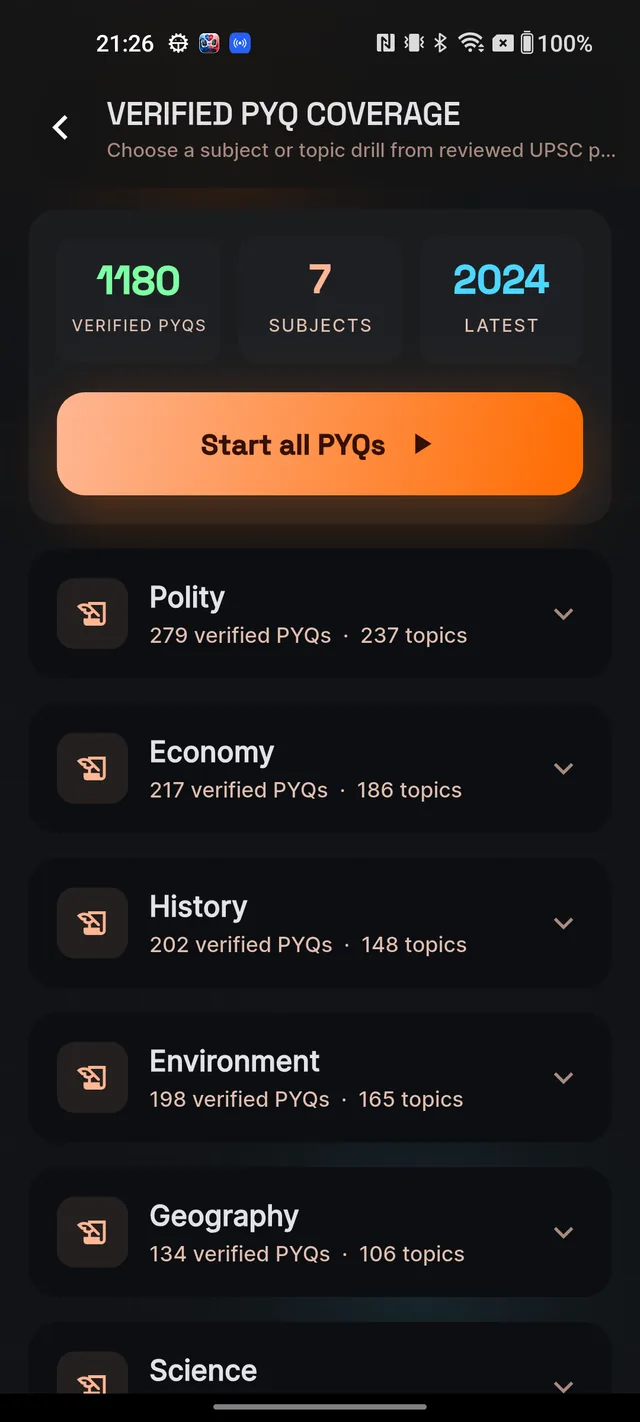
- You land on VERIFIED PYQ COVERAGE, where you can, as the subtitle says, Choose a subject or topic drill from reviewed UPSC previous-year questions.
What the summary shows
The summary card at the top has three stat tiles and one big button:
- Verified PYQs — the total number of editorially checked past-year questions in the bank.
- Subjects — how many subjects those questions span.
- Latest — the most recent exam year represented in the bank.
- Start all PYQs — starts a verified-PYQ-only quiz drawn from every subject. The quiz header shows PYQ MODE so you always know what you are practising.
Drill down by subject and topic
Below the summary, each subject appears as a collapsed card showing its name plus its verified-PYQ and topic counts. Tap anywhere on a card to expand it:
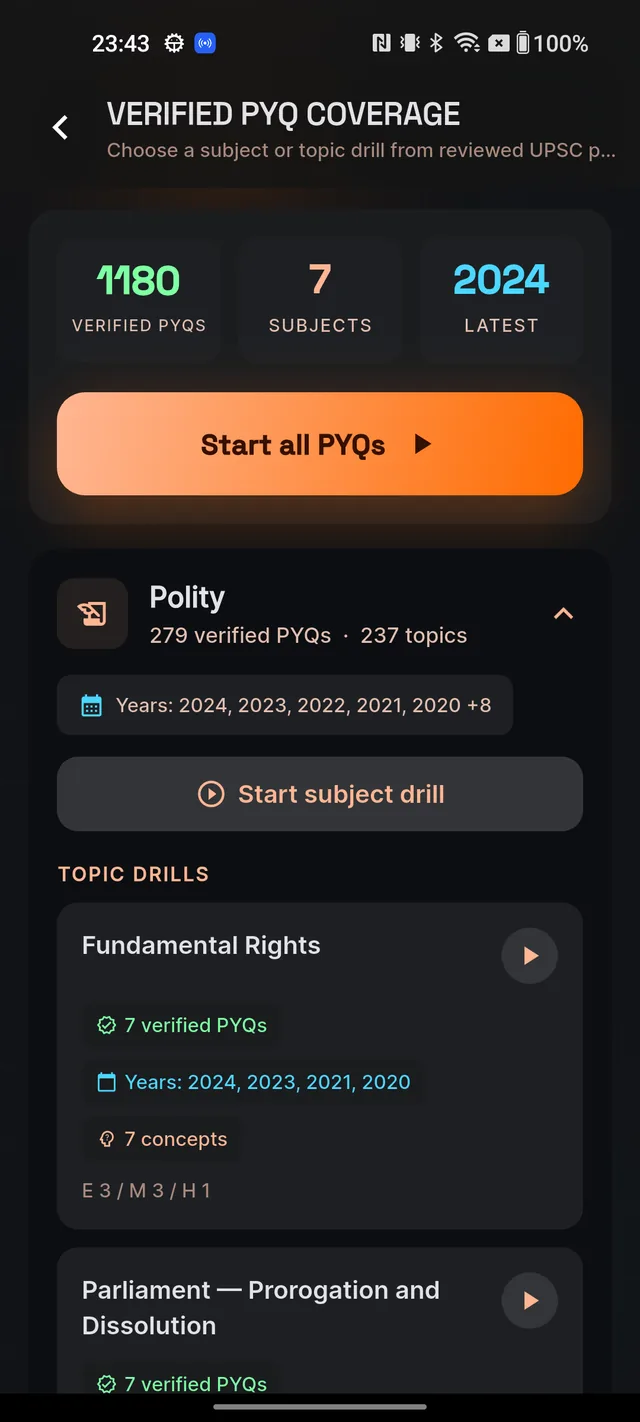
- A Years: chip lists which exam years the questions come from.
- Start subject drill launches a PYQ quiz scoped to that whole subject.
- The TOPIC DRILLS list breaks the subject into topics. Each row shows that topic's verified-PYQ count, its years, how many concepts it covers, and a difficulty split such as E 4 / M 7 / H 2 — 4 easy, 7 medium, 2 hard. Tap the play button on a row to start a drill on just that topic.
Inside a drill, every question carries its source badge — for example UPSC CSE Prelims 2019 Q42 — so you always see exactly which paper it came from. Green-verified badges mean the question was editorially checked against the official paper; blue badges mean the source is mapped but the check is still pending. More on badges in Start a quiz.
Why PYQ mode never mixes in AI questions
This is a deliberate rule, and it is worth understanding. When you ask for a PYQ drill, you are asking "show me what UPSC actually asked." Padding that set with AI-drafted lookalikes would quietly corrupt your sense of the real exam pattern — you would be calibrating against questions UPSC never set. So PYQ mode is exam-honest: if a topic has 6 verified PYQs, your drill has exactly 6 questions, never 6 real ones plus 4 fillers. A shorter quiz here is a feature, not a shortfall. When you want unlimited practice volume on a topic, run a normal subject quiz instead — that is what AI-generated questions are for.
Frequently asked questions
What is a PYQ?
A previous-year question — a question that actually appeared in a real UPSC paper, shown with its exam and year.
What does "Verified" mean on a PYQ?
It has been editorially checked against the official paper. Unverified PYQs show a badge saying the source is mapped but verification is pending.
Why did my PYQ quiz have fewer than 10 questions?
PYQ mode never pads a quiz with AI questions. If a topic has only 6 verified PYQs, you get exactly 6 — that is deliberate exam-honesty, not a bug.
Do PYQ drills use my daily AI allowance?
No. They come straight from the verified bank, never trigger AI generation, and are free on every plan.
What does a line like "E 4 / M 7 / H 2" on a topic mean?
The difficulty split of that topic's verified PYQs: 4 easy, 7 medium and 2 hard questions.
Didn’t find what you needed? We are a small team and we read every message.
Email supportBack to Help Center