During the quiz: answering & explanations
Inside a Dooit quiz, tapping an option is your answer — feedback is instant, and a coach-written explanation appears under every question. This guide covers the quiz screen, what SAVE and SKIP really do, how to leave safely, what to do when a quiz takes a while to build, and what the results screen shows.
The quiz screen at a glance
The header shows QUESTION 3/10-style progress, the quiz mode (DEEP WORK MODE, PYQ MODE or WEAKNESS DRILL), a timer and a flame chip. Two things trip people up:
- The timer is a stopwatch, not a countdown. There is no time limit per question or per quiz.
- The flame here counts your correct answers in this session — it is not your daily study streak (that flame lives on the MCQ home screen).
Below the header, a performance strip stays visible throughout: AVG SPEED (seconds per question, shown once you have answered at least two), CORRECT (count so far) and ACCURACY (percentage of those you have answered).
One more thing: the quiz screen is protected content, so screenshots come out black on it. That is deliberate, not a glitch.
Answering and reading the explanation
Each question shows four options labelled A to D. Tapping an option submits it immediately — there is no confirm step and no changing your mind. After the result:
- The correct option turns green with a check icon. If you picked wrong, your pick turns red and the correct one is still highlighted green.
- An explanation card titled COACH INSIGHT appears below the options. Long explanations are collapsed — tap the card or Read more to expand, Show less to collapse.
- If something looks wrong in the question or the explanation, tap the small flag icon on that card to report it — see Report wrong content.
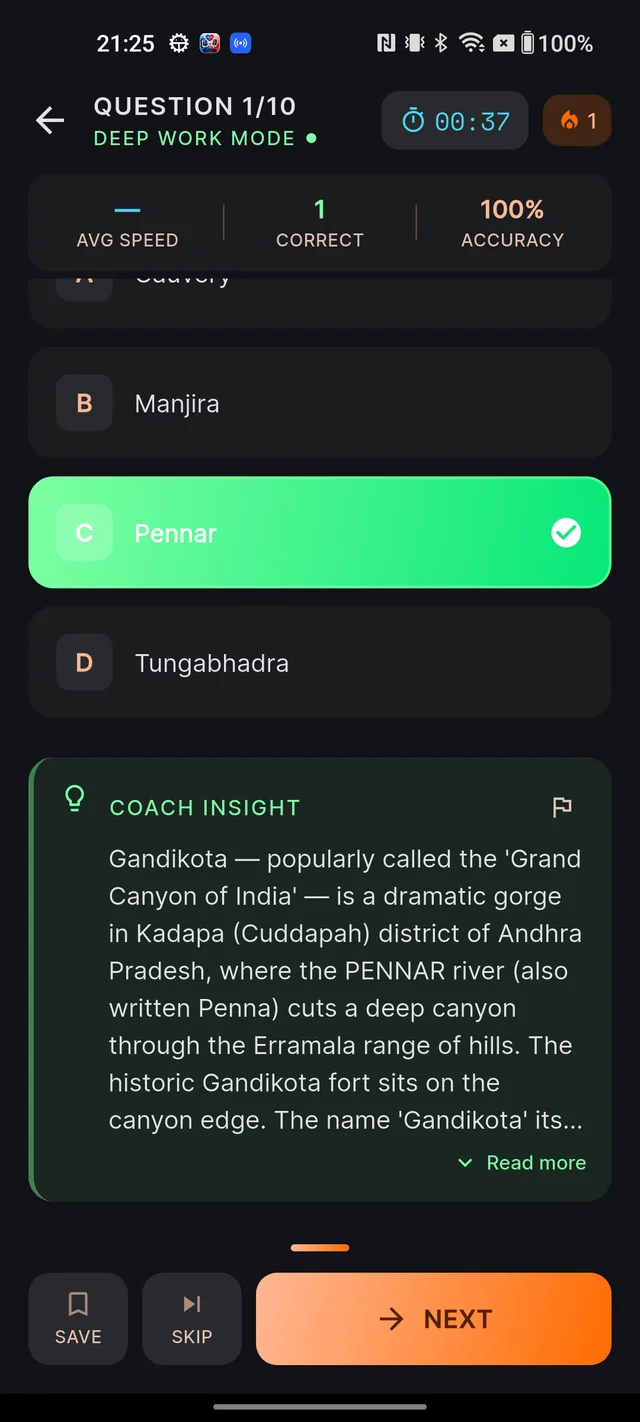
SAVE, SKIP and NEXT
- SAVE bookmarks the question for revision — you will see Question saved for revision and the button changes to SAVED. Tap again to remove the bookmark.
- SKIP is not neutral: a skipped question is recorded as a "Skipped" mistake and lands in your Mistakes Notebook with a retry scheduled for the next day.
- NEXT stays dimmed until you answer, then moves you on. On the last question it reads FINISH.
Leaving a quiz midway
Pressing back during a quiz opens a dialog titled Abandon Quiz? with the warning Your progress won't be saved if you leave now. Tap KEEP GOING to stay, or ABANDON to leave. If you abandon, the session is not completed — treat it as discarding the attempt rather than pausing it.
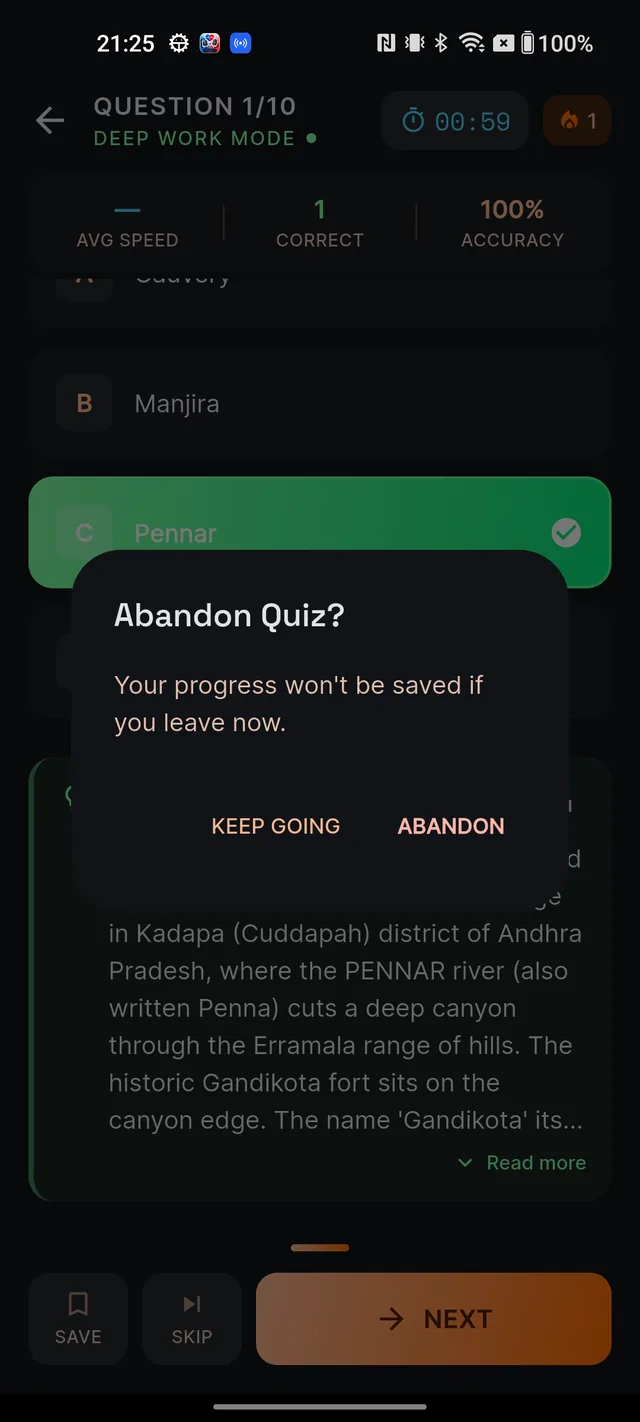
If your quiz takes a while to build
The first quiz on a fresh topic can take one to three minutes, because our AI is writing brand-new questions for it. You will see a loading screen titled Crafting your quiz with a four-step checklist, an elapsed-seconds counter and a rotating DID YOU KNOW tip card. The footer says it honestly: First-time topic — next attempt will be instant. — generated questions are saved, so repeats load straight from the bank.
If it is still building after about 75 seconds, a calm card appears: This is taking a little longer than usual. You do not have to wait:
- Tap Notify me & keep learning. You will see a confirmation toast and be returned to where you started — use the rest of the app freely. (Or tap Keep waiting here to stay on the loading screen.)
- When the quiz is ready, a push notification arrives — for example "Your Polity quiz is ready" with the number of fresh questions. The same message also lands in your in-app notification inbox, so you will find it even with push turned off. See Notifications & reminders.
- Tap the notification. It opens the exact quiz that was generated — nothing is regenerated and no extra AI action is spent.
If generation genuinely fails, you are never left waiting forever: a notification titled Couldn't finish your quiz arrives instead, and tapping it retries the same quiz with the same settings. On-screen failures show Try again and GO BACK buttons.
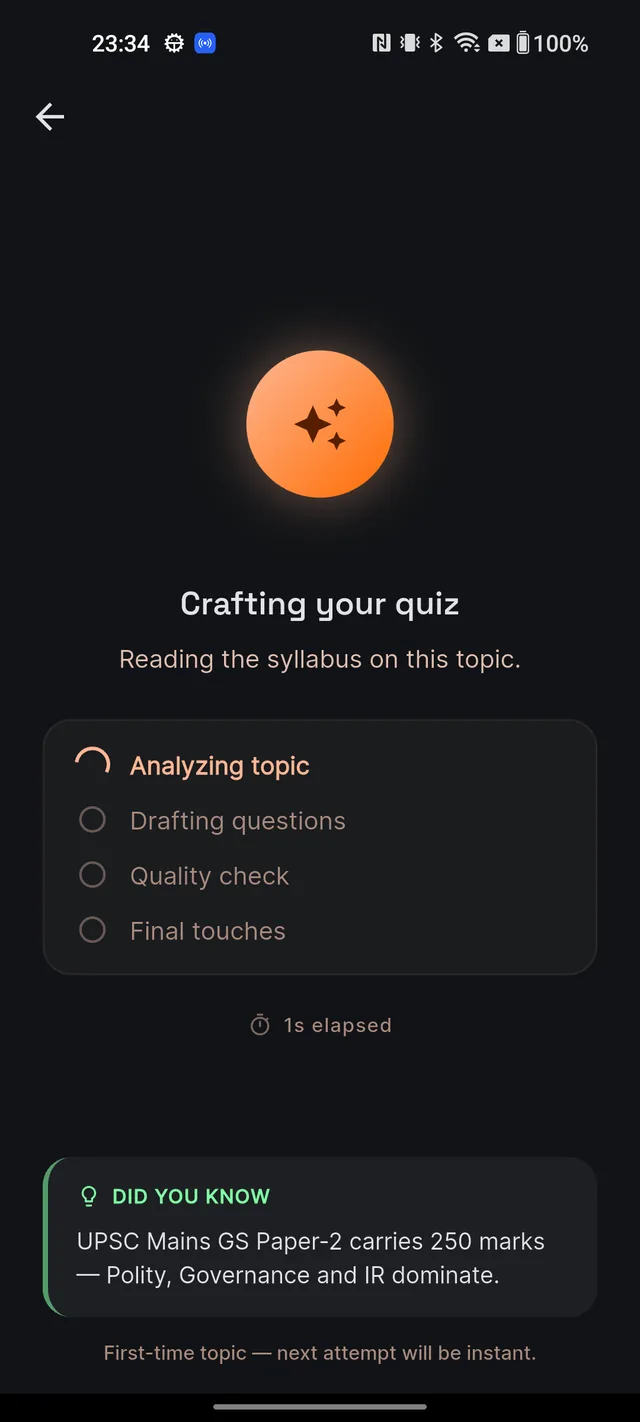
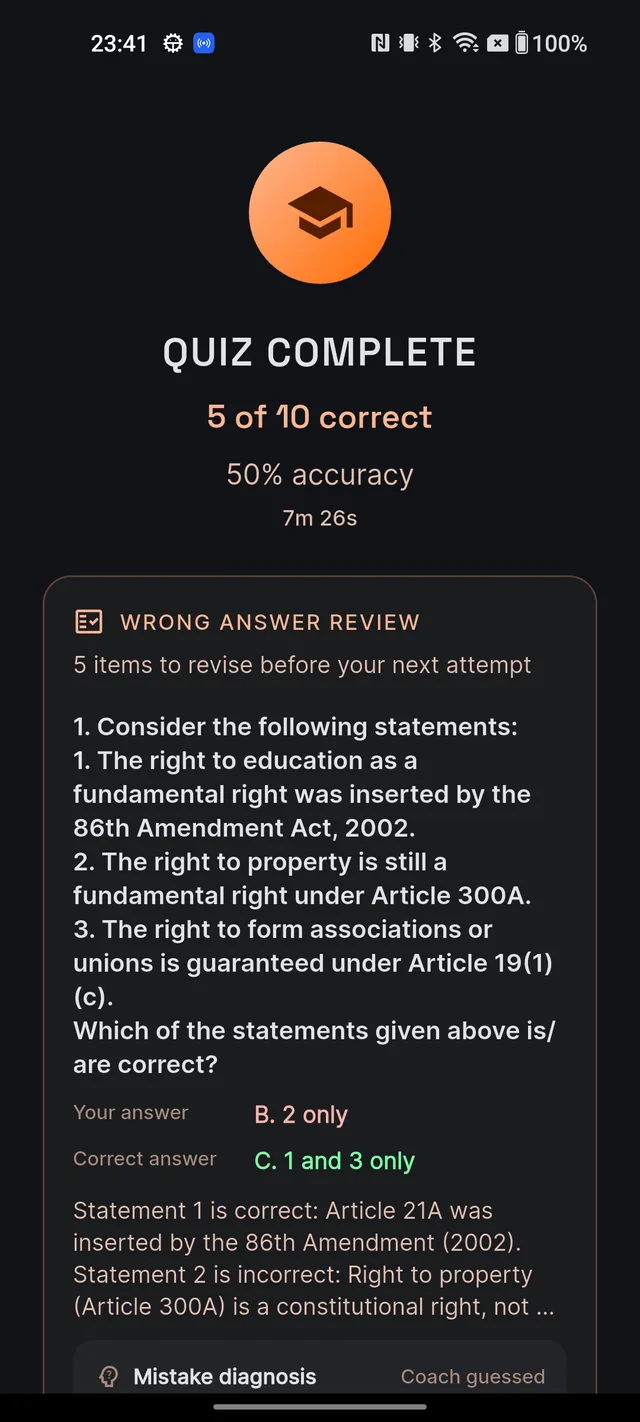
Finishing: your results
After FINISH you land on the QUIZ COMPLETE screen: your score (for example "7 of 10 correct"), accuracy percentage and total time. Below it, the WRONG ANSWER REVIEW lists every wrong or skipped question with Your answer in red, Correct answer in green, the explanation, a Mistake diagnosis you can confirm or correct on the spot, and a Revise: … topic chip. A perfect round shows No wrong answers. Move to a harder set next. Tap DONE to return to where you started.
Frequently asked questions
Can I change my answer after tapping an option?
No. Tapping an option submits it immediately — there is no separate submit button and no way to switch.
Is there a time limit per question?
No. The timer in the header is a simple stopwatch showing elapsed time. Nothing happens when it runs.
What happens if I leave a quiz midway?
Pressing back shows the Abandon Quiz dialog. If you tap ABANDON, your progress is not saved and the session does not count as a completed quiz. Tap KEEP GOING to stay.
Do I have to wait on the quiz loading screen?
No. If it runs past about 75 seconds, a card offers "Notify me & keep learning". Tap it, use the rest of the app freely, and a notification will tell you when the quiz is ready.
Does tapping the "quiz is ready" notification use my AI allowance again?
No. It opens the exact quiz that was already generated — nothing is regenerated and no extra AI action is spent.
I lost internet mid-quiz — is my attempt gone?
No. The app grades your answers locally so you can keep going. The results screen will show a notice that some answers could not be saved and your stats may be incomplete.
Didn’t find what you needed? We are a small team and we read every message.
Email supportBack to Help Center