Your profile & settings
Your Profile is the scoreboard — streak, tasks, accuracy and your prep details — while Settings is the control room for language, notifications, subscription and legal pages. This guide walks both screens top to bottom so nothing on them is a mystery.
The Profile screen, top to bottom
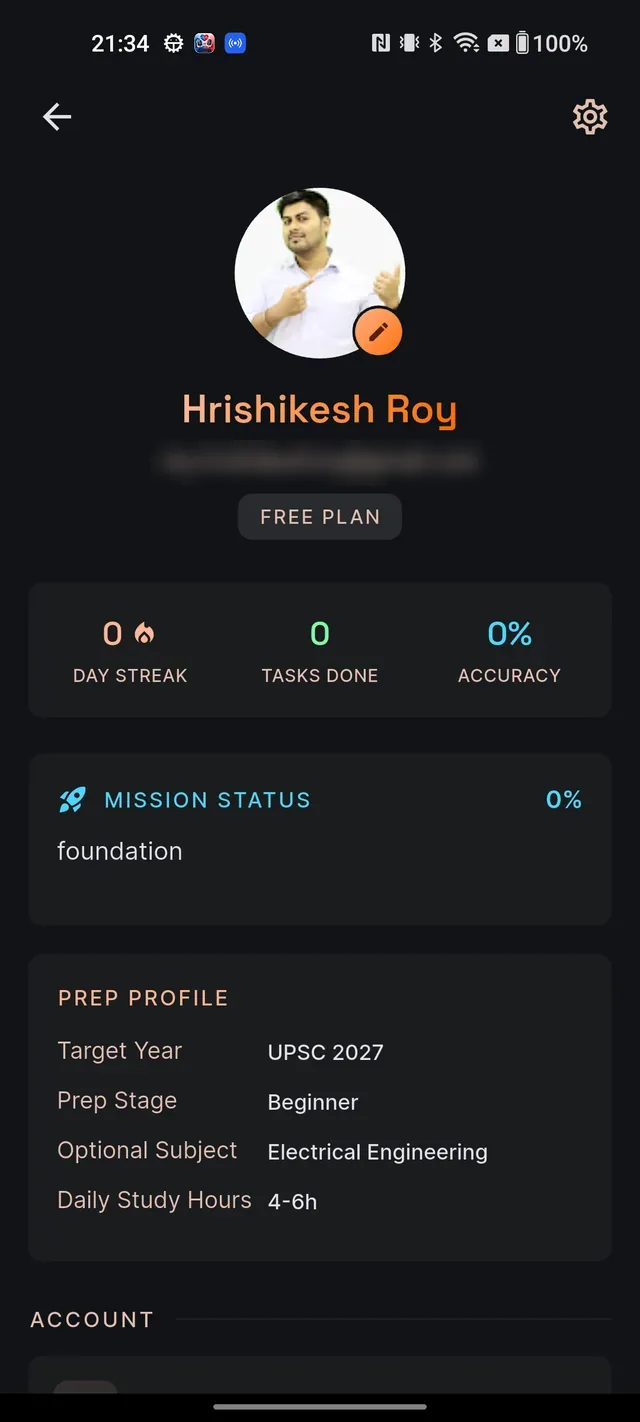
Open it by tapping your avatar in the top-left of Home. From top to bottom you will find:
- Avatar and name — your photo with a small pencil badge for editing, your name and email, and your plan badge: a grey FREE PLAN chip on the free plan, or your tier name (ASPIRANT, SERIOUS or ELITE) in a gradient chip on a paid one.
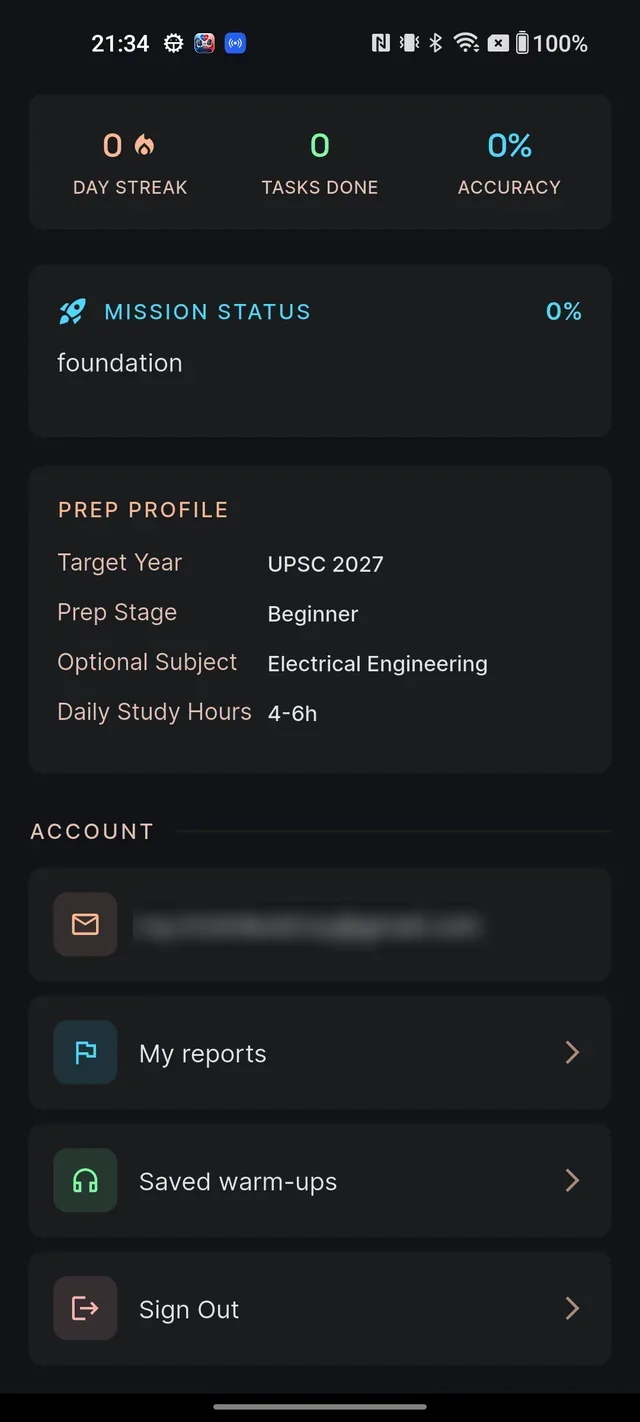
- Three headline stats — DAY STREAK (consecutive study days, with the flame), TASKS DONE (completed plan tasks) and ACCURACY (your test accuracy). They read 0 until your study plan has some activity.
- MISSION STATUS — appears once you have a study plan: your current phase and overall completion percentage.
- PREP PROFILE — the choices from onboarding: Target Year, Prep Stage, Optional Subject and Daily Study Hours. These are shown read-only here.
- ACCOUNT — four tiles: your email (display only), My reports (every content report you filed, with verdicts — see Report wrong content), Saved warm-ups (your saved and downloaded audio warm-ups, in Saved and Downloaded tabs), and Sign Out.
Change your profile photo
- On Profile, tap the pencil badge at the bottom-right of your avatar.
- In the Update profile photo sheet, choose Choose from gallery or Take a photo.
- Wait a moment while it uploads — you will see "Profile photo updated." when done. The app resizes the image automatically, so there is no cropping step.
Settings, section by section
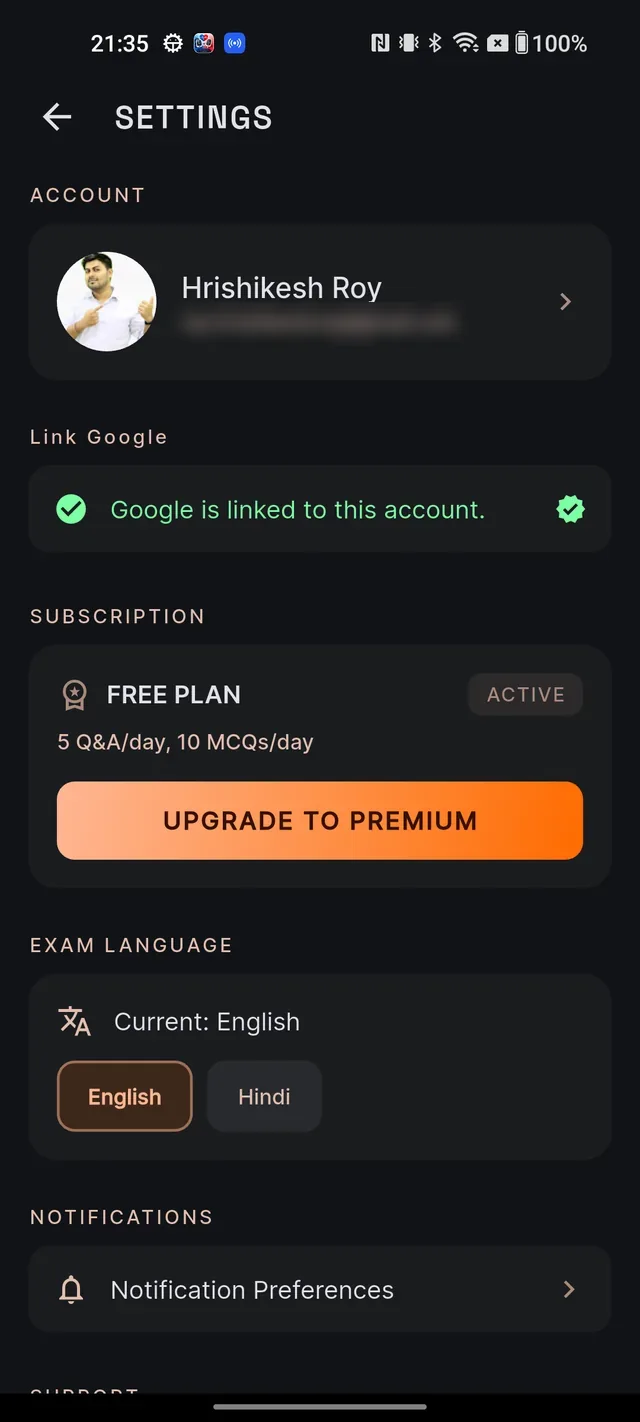
Open Settings from Profile via the gear icon (top-right). In order:
- ACCOUNT — a card with your name and email; tapping it returns to Profile.
- Link Google — if your account isn't linked yet, tap Link Google account to add Google sign-in. Once linked you will see Google is linked to this account. (there is no unlink option). This section is hidden on builds without Google sign-in.
- SUBSCRIPTION — your plan card. Free users see UPGRADE TO PREMIUM; paid users see Manage subscription. Details in Free vs paid and Subscribe, manage & cancel.
- EXAM LANGUAGE — two chips, English and Hindi. Tapping one switches the entire app — AI answers, MCQs, study material and interface — and shows Saving language… while it saves. If saving fails, the choice springs back; check your connection and try again. More in Choose English or Hindi.
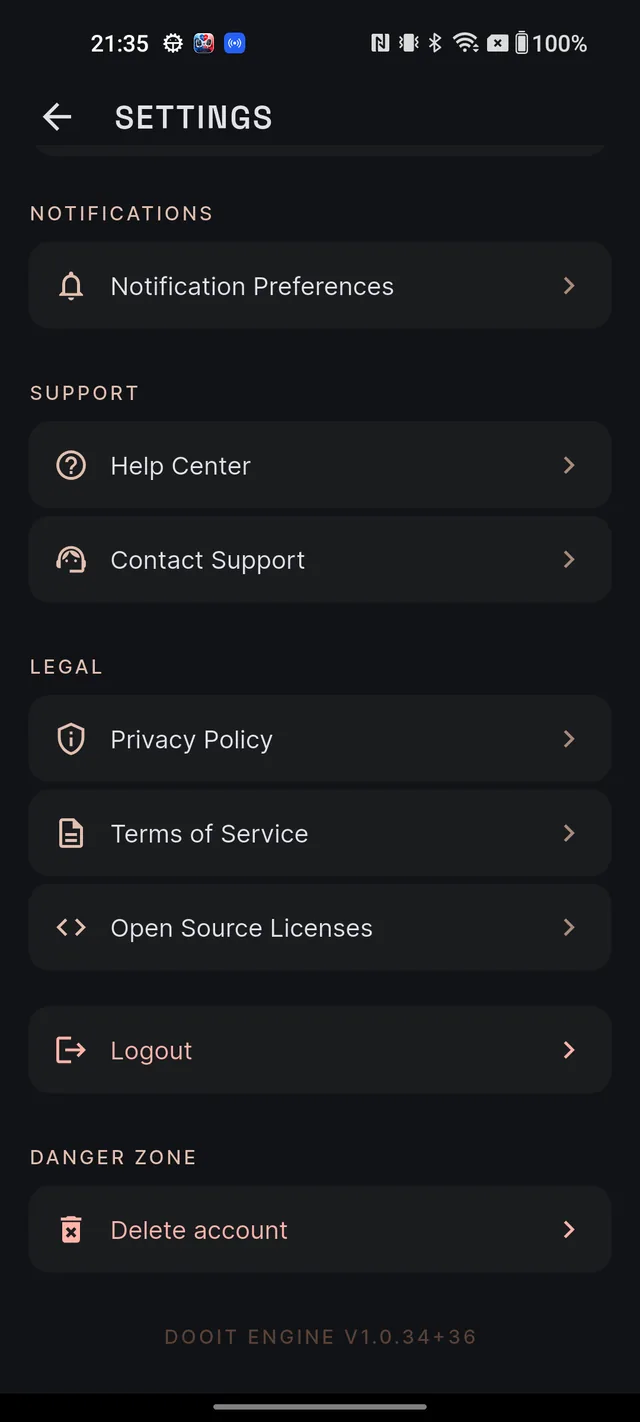
- NOTIFICATIONS — Notification Preferences opens the reminder toggles and the time picker. See Notifications & reminders.
- SUPPORT — Help Center opens the in-app FAQ; Contact Support opens your email app addressed to roy@roydigital.in with the subject pre-filled. If no email app is installed, the address is copied to your clipboard instead.
- LEGAL — Privacy Policy, Terms of Service and Open Source Licenses, all readable inside the app.
- Logout — signs you out immediately (no confirmation), same as Sign Out on Profile.
- DANGER ZONE — Delete account, the permanent one. Read Delete your account & your data before touching it.
At the very bottom, the footer line (it reads like DOOIT ENGINE V1.0.34+36) is your app version — useful when writing to support.
Things you might look for that are not there
- Theme toggle — none. The app ships with one dark theme.
- Separate interface-language setting — none. The exam language controls everything.
- Name editor — your name and email come from your sign-in identity; there is no in-app name editor on Profile or Settings.
- Google unlink — once linked, Google stays linked.
Frequently asked questions
How do I change my profile photo?
On the Profile screen, tap the small pencil badge on your avatar, then choose Choose from gallery or Take a photo. The app resizes the picture for you — no cropping needed.
How do I switch the app between English and Hindi?
Open Settings and under EXAM LANGUAGE tap English or Hindi. The whole app follows — AI answers, MCQs, study material and the interface.
Why does my badge say FREE PLAN when I have paid?
The badge reads your live plan from the server each time the screen opens. If the network is slow it can briefly show FREE PLAN — give it a second, or bring the app back to the foreground to refresh.
Is there a light or dark theme setting?
No. Dooit ships with a single dark theme, and there is no separate interface-language setting either — the exam language controls everything.
How do I sign out?
Either tap Sign Out at the bottom of the Profile screen or Logout near the bottom of Settings. Both sign you out immediately, without a confirmation dialog.
Where do I see reports I have filed?
Profile, then My reports. Every report you submitted is listed there with its current status and our written finding when one exists.
Didn’t find what you needed? We are a small team and we read every message.
Email supportBack to Help Center