Install & update the app
Dooit installs from Google Play in under a minute, and because everything you do is saved to your account — not your phone — you can reinstall or switch phones any time without losing a thing. Here is the full install, update and recovery routine.
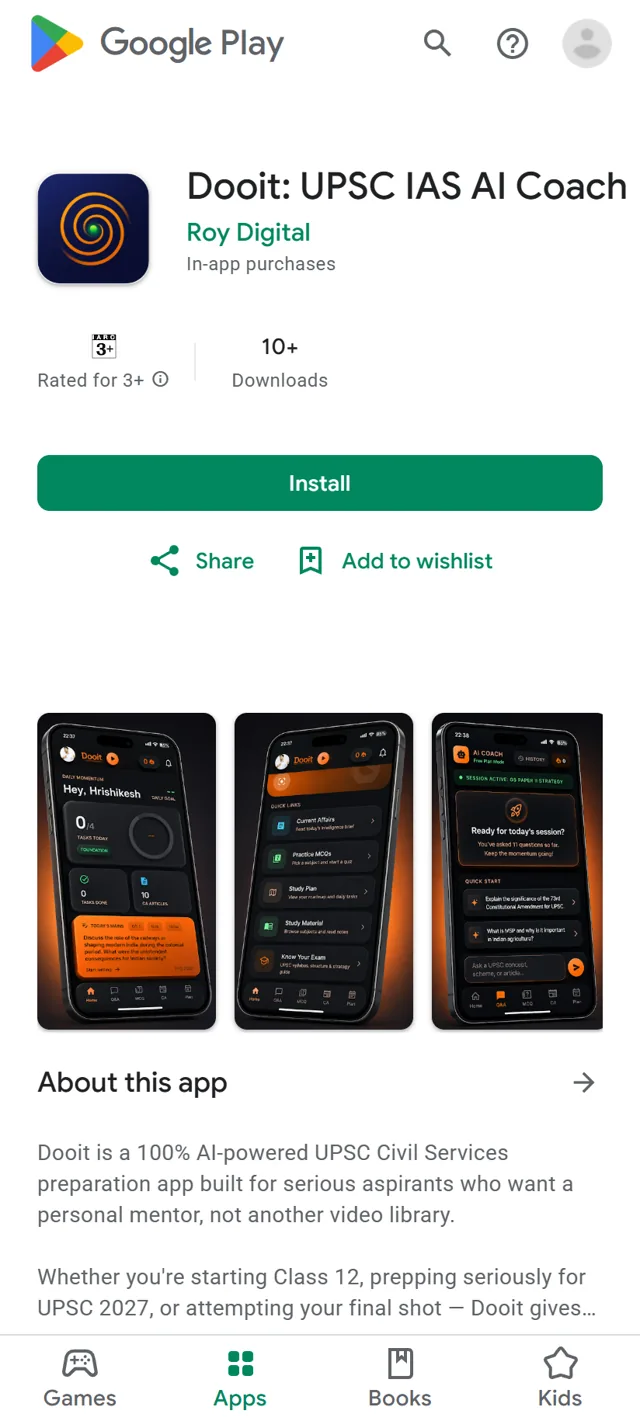
Install Dooit from Google Play
- Open the Play Store app on your Android phone.
- Search for Dooit and open the app's listing.
- Tap Install and wait for the download to finish.
- Tap Open — Dooit starts on its splash screen.
Any device requirements are listed on the Play Store page itself.
First open — what to expect
On first launch you see the splash screen with the tagline MISSION CONTROL FOR UPSC, then the sign-in screen. Create your account (or sign in if you already have one) and complete the short six-question setup. Both are covered step by step in Create your account & sign in and Set up your exam profile.
Keep Dooit updated
Updates arrive through Google Play like any other app:
- Open the Play Store and go to Dooit's listing (search "Dooit" again, or find it under your installed apps).
- If an Update button is showing, tap it. If you only see Open, you are already on the latest version.
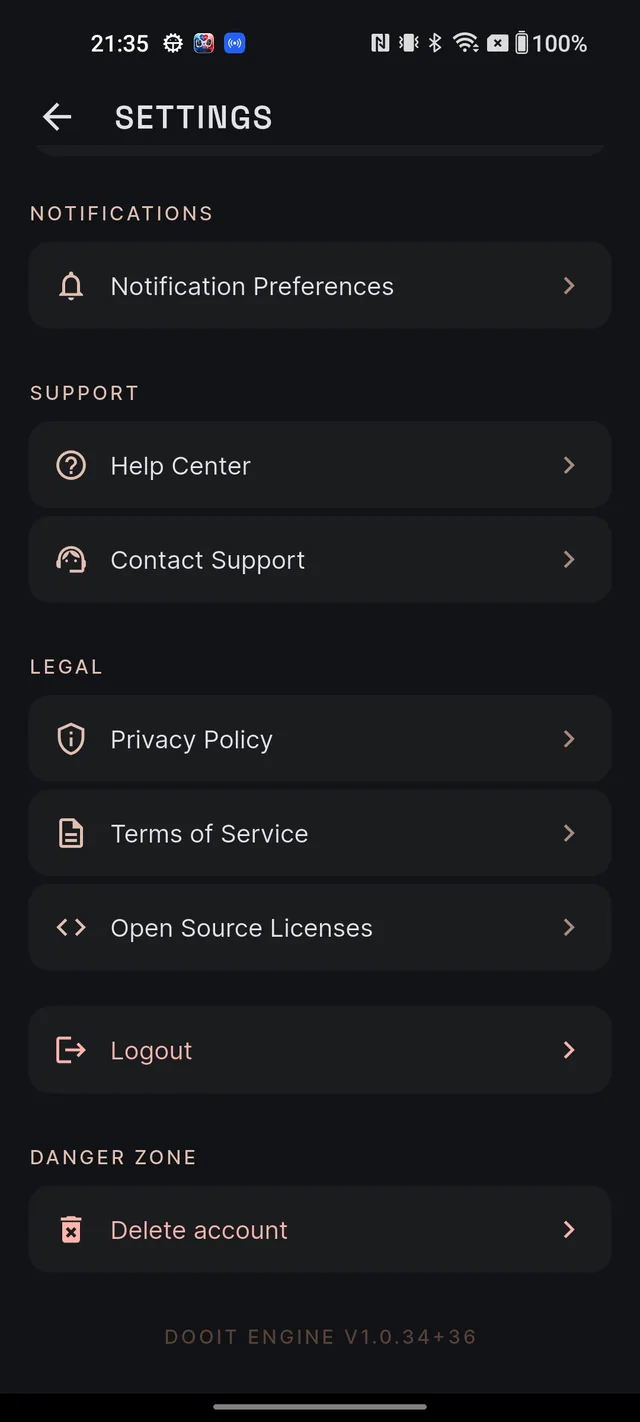
Most phones have Play Store auto-update switched on by default, so you rarely need to do this by hand. To confirm which version you are on, open SETTINGS inside Dooit (tap your avatar on Home, then the gear icon) and scroll to the very bottom — the footer line starting DOOIT ENGINE shows your exact version. Support may ask you for this number.
Reinstall or switch phones without losing anything
Your plan, progress, streak, history and settings all live with your Dooit account, not on the device. So uninstalling the app — or moving to a new phone — costs you nothing:
- Install Dooit from the Play Store as above.
- Sign in with the same method and email you used before — Continue with Google, or your email and password.
- Everything is restored automatically; you land on Home exactly where you left off, with no repeat of the setup questions.
If the install or update will not finish
Almost all install problems are store-side or device-side. Work down this list:
- Check your internet connection — switch between Wi-Fi and mobile data and retry.
- Check free storage space on the phone and clear some room if it is nearly full.
- Restart the phone and try the install again.
- Still stuck? Google's own guide, Fix problems downloading apps from the Play Store, covers the remaining store-side fixes.
If Dooit installs fine but shows Unable to start. Check your connection. when opened, that is a network hiccup, not an install fault — get online and tap RETRY. For anything app-side that persists after these steps, email us at roy@roydigital.in with your phone model and the version line from Settings.
Frequently asked questions
Will I lose my plan and progress if I uninstall the app?
No. Everything — your plan, progress, streak, history and settings — lives with your Dooit account, not the phone. Reinstall, sign in with the same method you used before, and it is all back.
How do I check which version of Dooit I have?
Open Settings (your avatar on Home, then the gear icon) and scroll to the very bottom. The footer line starting "DOOIT ENGINE" shows your version.
Do I have to update the app manually?
Not if auto-update is on in Google Play, which is the default for most phones. You can also open Dooit's Play Store page any time — if an Update button shows, tap it.
Can I use Dooit on a computer too?
Yes — Dooit also works on the web at app.dooitupsc.com with the same account.
The download is stuck or fails in the Play Store.
Check your internet connection and free storage space, then retry. If it keeps failing, restarting the phone usually clears it; Google Play's own help pages cover the remaining store-side fixes.
Didn’t find what you needed? We are a small team and we read every message.
Email supportBack to Help Center