A tour of your Home screen
Home is Dooit's mission-control dashboard — the first screen after sign-in. It shows your daily momentum at a glance: tasks done today, your goal ring, your streak, today's Mains question, quick actions and shortcuts into every major area. Pull down any time to refresh.
The header bar
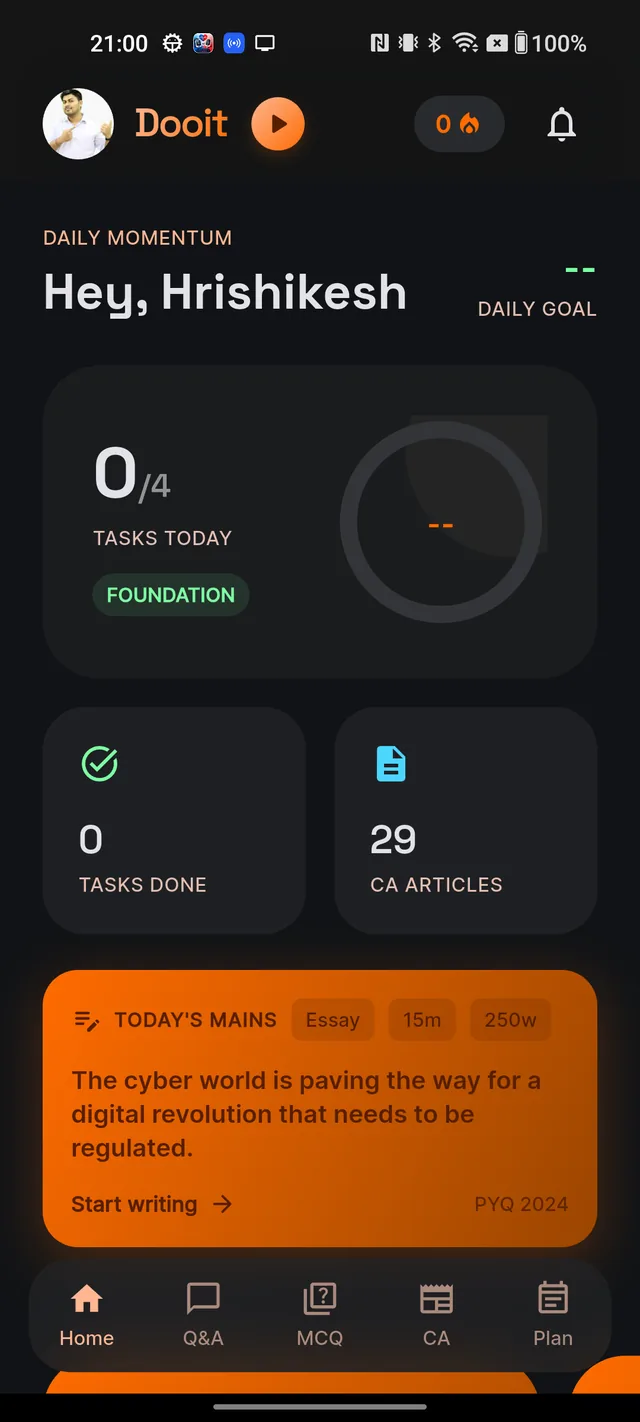
The slim bar fixed at the top gives you four things:
- Your avatar (left) — tap it to open your Profile.
- The play button next to the Dooit wordmark — plays the "Kar Dooit" brand jingle with a little progress ring. Tap again to pause. Purely for fun.
- The streak badge — a number with a flame icon showing your study streak in days (consecutive days where you completed at least 80% of your plan tasks — see Streaks & progress). It shows 0 rather than hiding when you have no streak yet.
- The bell — opens your notifications inbox.
Today at a glance
Under the DAILY MOMENTUM eyebrow you get a personal greeting ("Hey, " plus your first name) and, on the right, a percentage with DAILY GOAL — how much of today's plan you have completed.
Below it sits the big progress card: a TASKS TODAY count (done/total), a pill naming your current plan phase (or PLAN ACTIVE, or NO PLAN YET if you have not generated a plan), and a circular ring with the same daily-goal percentage. Tap this card to open your Plan — tasks are started from the Plan screen, not from Home (see Today's tasks).
Two smaller stat cards follow: TASKS DONE (your all-time completed tasks) and CA ARTICLES (today's current-affairs count — tap it to jump to the CA tab). While data loads, numbers show -- instead of a spinner; pull down to refresh.
The TODAY'S MAINS card
When the day's curated Mains question is published, an orange TODAY'S MAINS card appears with the question text, chips for the GS paper, marks and word limit, and a Start writing link that opens the Mains answer editor. Past-year questions also carry a "PYQ" year tag. If the card is missing, the day's question simply is not out yet — not a bug. You can always reach Mains from the Mains Workspace card below.
RESUME MISSION — your quick actions
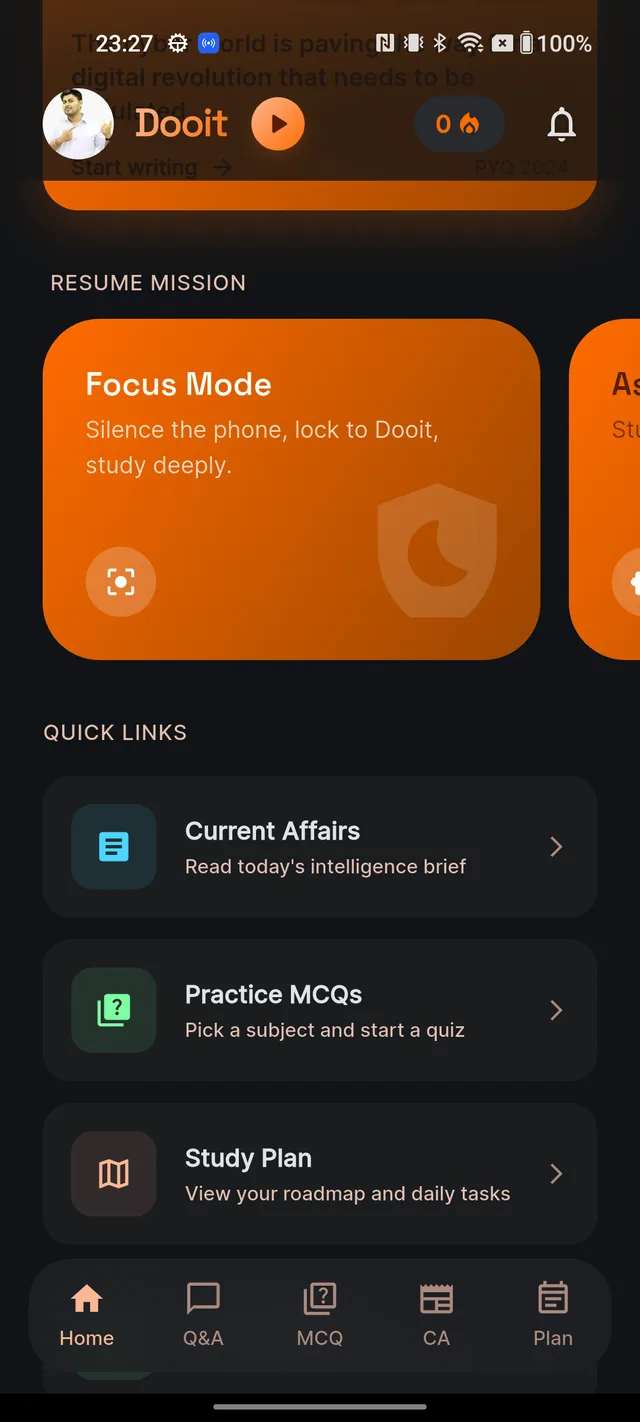
The RESUME MISSION row is a sideways-scrolling carousel of one-tap starting points:
- Focus Mode — silence the phone and lock into a deep-study session (Android phones).
- Ask AI Tutor — "Stuck on a concept? Explain it now." Opens AI Q&A (see Ask your first question).
- Practice MCQs — pick a subject and start drilling.
- Revise Today — clear due topics, mistakes and saved notes.
- Mains Workspace — write Mains answers and get AI-graded feedback.
- Check Plan — opens your Plan; the card's subtitle shows a live summary of where you are, with a small progress bar.
QUICK LINKS — everything else
The QUICK LINKS list at the bottom is your map into the rest of the app:
- Current Affairs — "Read today's intelligence brief".
- Practice MCQs — pick a subject and start a quiz.
- Study Plan — view your roadmap and daily tasks.
- Study Material — browse subjects and read notes.
- Know Your Exam — the built-in UPSC syllabus, structure and strategy guide (see the Exam Guide tour).
The bottom navigation
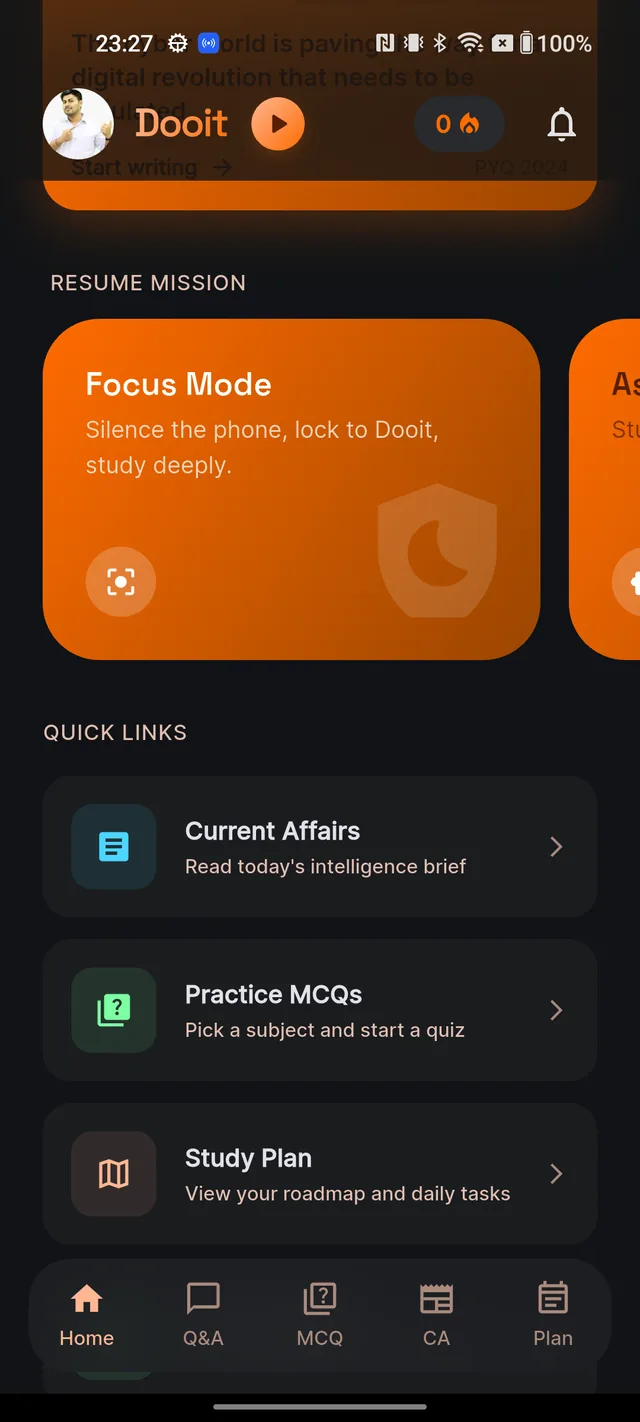
Five tabs are always one tap away along the bottom of the app: Home, Q&A, MCQ, CA and Plan. Home is this dashboard; the other four take you straight into AI doubt-solving, quiz practice, current affairs and your study plan.
Frequently asked questions
My dashboard shows "--" everywhere. Is something broken?
Either your study plan has not been generated yet (the pill will read "NO PLAN YET") or the data is still loading. Pull down to refresh; if you have no plan, open the Plan tab to generate one.
What is the small play button next to the Dooit logo?
It plays the "Kar Dooit" brand jingle. Tap to play or pause — it is just for fun and does not affect anything else.
Where did the TODAY'S MAINS card go?
It only appears once the day's curated Mains question is published. If it is missing, check back later or open Mains Workspace from the RESUME MISSION row.
What does the flame number in the top corner mean?
Your current study streak — the number of consecutive days where you completed at least 80% of your plan tasks. It shows 0 until a streak starts.
How do I start today's tasks from Home?
Tap the big progress card (or the "Check Plan" card) to open your Plan, then start tasks from there. The Home card is a summary, not a launcher.
Didn’t find what you needed? We are a small team and we read every message.
Email supportBack to Help Center