Create your account & sign in
Setting up Dooit takes about two minutes. This guide walks you through creating an account, confirming it with the 8-digit verification code, signing in with Google, and resetting a forgotten password.
Open the app and find the sign-in screen
When you open Dooit, the splash screen appears first with the tagline MISSION CONTROL FOR UPSC. If you are already signed in, it briefly shows Restoring your session... and takes you straight to Home — you never need to sign in twice. If you are new (or signed out), the app moves you to the sign-in screen on its own. Should the splash show buttons instead, both START THE ENGINE and Access Previous Mission Data lead to the same sign-in screen.
If the splash shows Unable to start. Check your connection., your phone could not reach Dooit at startup. Check your internet connection and tap RETRY.
Create an account with email
The sign-in screen opens in sign-in mode (WELCOME BACK, CADET). New users switch to sign-up first:
- Tap Sign Up at the bottom of the screen. The heading changes to CREATE YOUR ACCOUNT and a name field appears.
- Enter your FULL NAME, EMAIL and a PASSWORD of at least 6 characters. The eye icon shows or hides the password.
- Tap CREATE ACCOUNT. By signing up you agree to the Privacy Policy and Terms of Service — the links open in your browser.
- Dooit emails you a verification code from noreply@dooitupsc.com and opens the Verify Email screen.
Verify your email with the 8-digit code
- On the VERIFY EMAIL screen (Check your inbox), open the email Dooit just sent you and find the 8-digit code.
- Type the code into the VERIFICATION CODE field. It verifies automatically the moment the last digit goes in — or tap VERIFY & CONTINUE.
- On success, brand-new accounts go straight into the short setup flow (see Set up your exam profile).
If you see That code is incorrect or expired. Please try again., request a fresh one with Resend code (available once the 60-second countdown ends) and enter the code from the newest email. Typed the wrong email at sign-up? Tap Edit next to Wrong email? to go back and fix it.
Sign in with Google
If you prefer one-tap access with no password:
- Tap Continue with Google at the top of the sign-in screen.
- Pick your Google account in the sheet that appears.
- First-time users are taken to profile setup; returning users land on Home.
If that email already has a password account, Dooit shows This email is already registered. Sign in with your email and password, then link Google from Settings. — do exactly that, and afterwards both sign-in methods open the same account. Linking lives in Settings.
Reset a forgotten password
- On the sign-in screen, tap Forgot password? under the password field.
- Enter your account email and tap SEND RESET LINK.
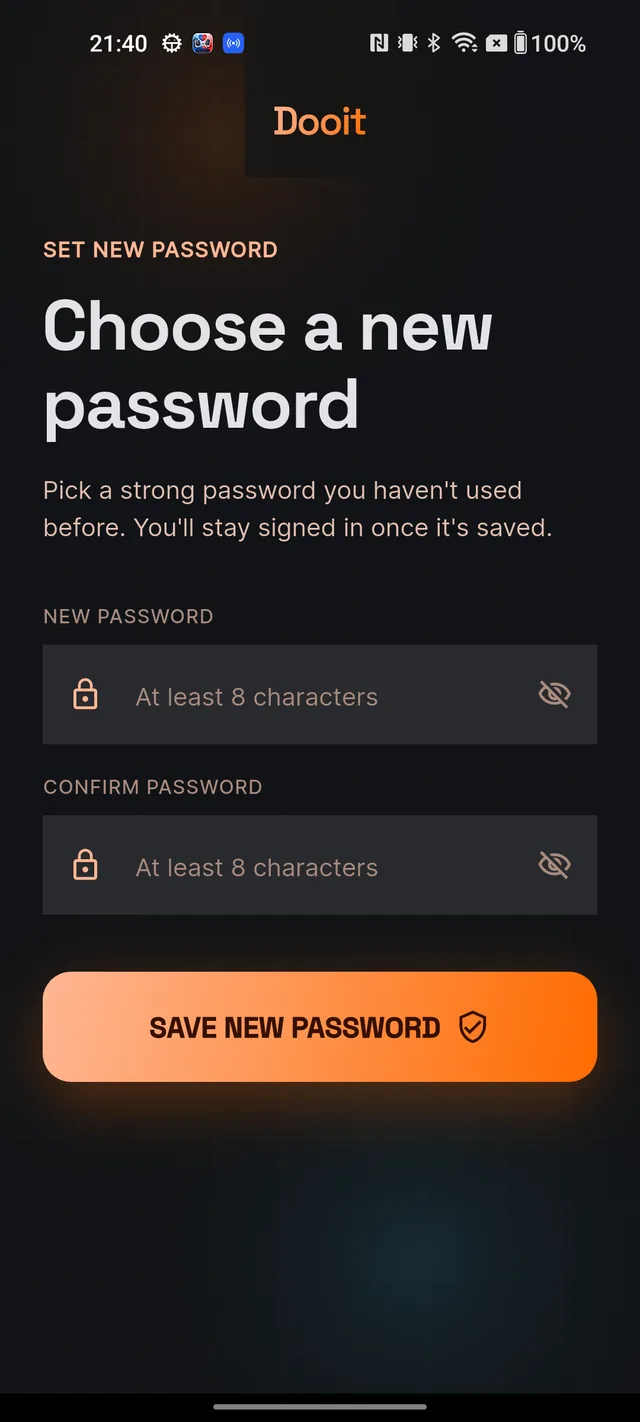
- A confirmation card appears. Open the reset email on the same phone where Dooit is installed and tap the link — it opens the app's Set New Password screen.
- Enter your new password twice (at least 8 characters) and tap SAVE NEW PASSWORD. You are signed in and back on Home right away.
Frequently asked questions
Do I have to sign in every time I open the app?
No. Dooit remembers your session on your phone. On each open, the splash screen briefly shows "Restoring your session..." and takes you straight to Home. You only sign in again if you signed out.
I never received the verification code. What do I do?
The code can take up to a minute to arrive and may land in spam — it comes from noreply@dooitupsc.com. On the Verify Email screen, tap "Resend code" once the 60-second countdown ends, then enter the code from the newest email.
I tapped Continue with Google and it said this email is already registered.
You previously created a Dooit account with that email and a password. Sign in with your email and password first, then link Google from Settings so both methods work on the same account.
Can I sign in with a code instead of a password?
No. The emailed code is only used to verify a new or unverified account. To sign in, use your password or Google.
It says my email has not been verified when I try to sign in.
Your account exists but you never entered the verification code. Just sign in again — Dooit automatically sends a fresh code to your email and opens the verification screen for you.
Didn’t find what you needed? We are a small team and we read every message.
Email supportBack to Help Center